Appointments
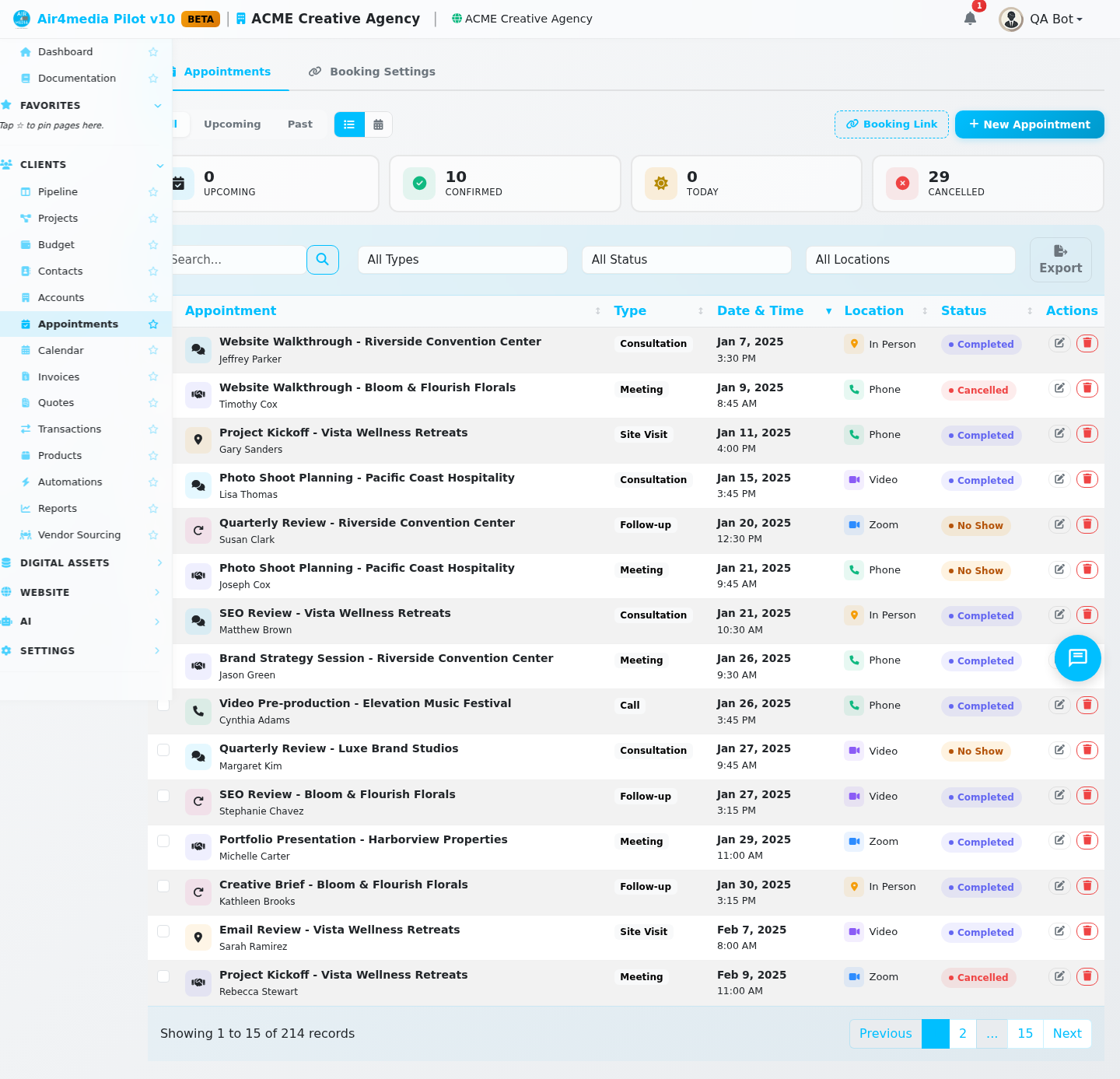
Manage all your scheduled meetings, calls, and client appointments in one place. Track status, link appointments to accounts, contacts, and projects, and filter your schedule by time, type, or location.
Key Features
- At-a-glance stats: See counts for Upcoming, Confirmed, Today, and Cancelled appointments. Click any stat card to instantly filter the list to that group — click it again to clear the filter.
- Searchable list: Search appointments by title, description, location, or notes. Sort by date, type, account, contact, or status.
- Flexible filtering: Filter independently by appointment type (Consultation, Site Visit, Meeting, Call, Demo, Follow-up, Custom), status, or location type (In Person, Phone, Video Call, Zoom, Google Meet).
- Time filters: Quickly switch between All, Upcoming, and Past appointments.
- CRM linking: Attach appointments to any Account, Contact, or Project for a full activity history.
- Calendar view: Switch to the Calendar to see appointments in a monthly, weekly, or daily layout — including linked project events and project date ranges.
- Online booking: Set your availability so clients can book appointments directly from a public booking page.
How to Use
Create an appointment
- Click New Appointment in the top right.
- Enter a title and select the appointment type (e.g. Consultation, Meeting, Call).
- Set the start and end date/time. The end time automatically defaults to one hour after the start. Check All Day Event if no specific time is needed.
- Choose a location type. For virtual meetings (Video Call, Zoom, Google Meet), paste your meeting link. For In Person or Phone, enter an address or leave it blank.
- Optionally link to an Account, Contact, or Project — for example, attach a kickoff call to a client account so it appears in their full activity history.
- Click Save.
Edit or delete an appointment
- Click Edit on any row to update details.
- Click Delete on a row to remove a single appointment.
- Select multiple appointments using the checkboxes, then use Delete Selected to remove them in bulk.
Update appointment status
When editing an appointment, change the Status field to reflect the current state:
- Scheduled — booked but not yet confirmed
- Confirmed — client has confirmed
- Completed — the appointment took place
- Cancelled — cancelled by either party
- No Show — client did not attend
Switch to Calendar view
Click Calendar View to see your appointments laid out on a calendar. The calendar also displays events and timelines from your linked Projects.
Tips
- Click a stat card (Upcoming, Confirmed, Today, Cancelled) to instantly filter the list — click it again to clear the filter.
- Use the Upcoming time filter to focus on what's next without scrolling through past appointments.
- Link every appointment to a Contact or Account so your full meeting history appears in their CRM record.
- For virtual meetings, selecting Zoom, Google Meet, or Video Call hides the address field and shows a meeting link field instead.
- Use the Custom type for any appointment that doesn't fit the standard categories.
- Set up your availability rules to enable your public booking page, letting clients schedule time with you directly.