Products & Packages
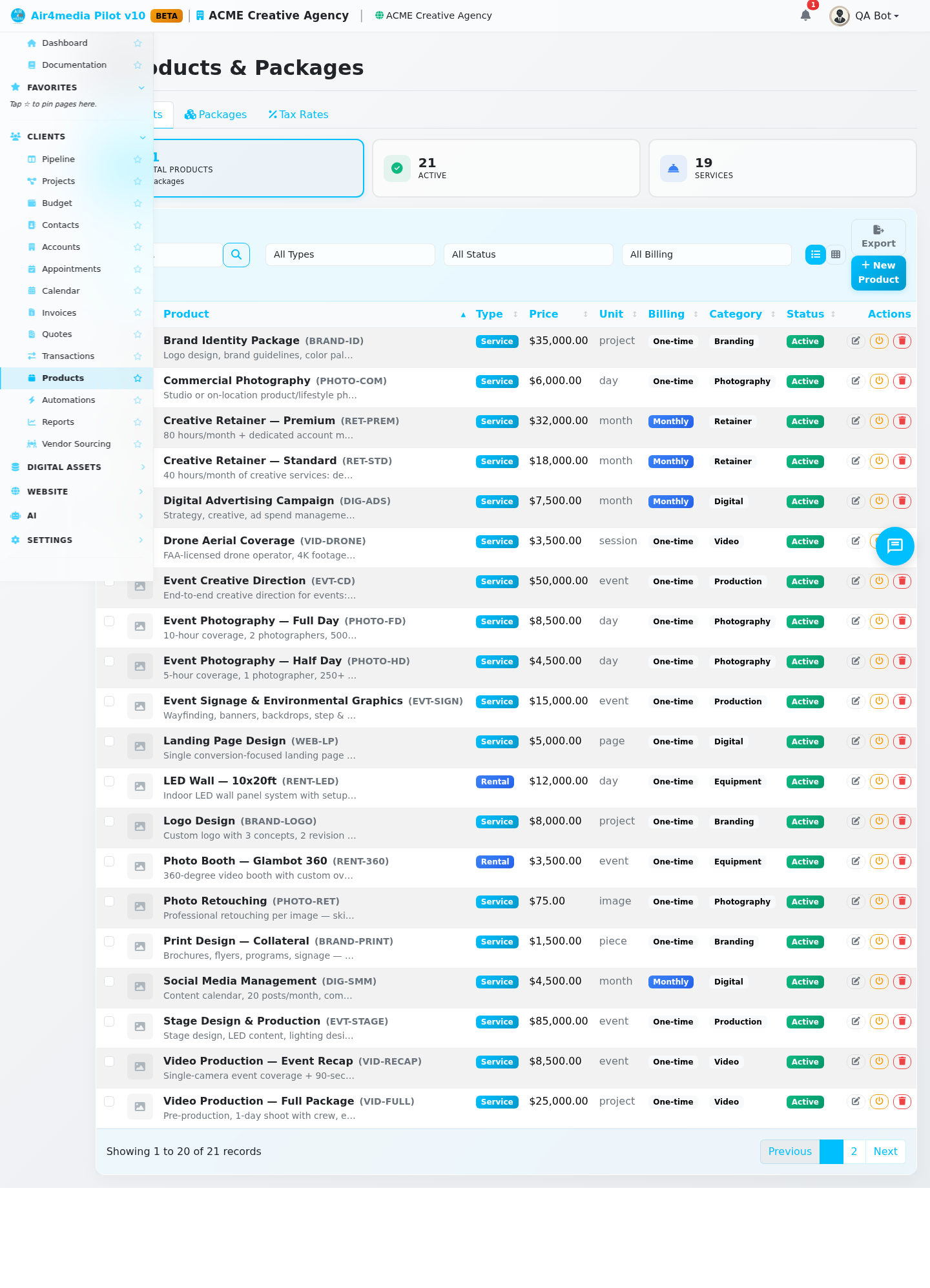
Manage your catalog of billable items — individual products and services, bundled packages, and tax rates. Everything here is available when creating quotes and invoices for your clients.
Key Features
- Quick Stats: Four cards at the top show your total products, active items, services, and packages at a glance
- Products List: View, search, filter, and manage all your items with sortable columns, pagination, and a toggle between table and card view
- Product Types: Categorize items as Service, Product, Rental, or Labor
- Billing Cycles: Set items as one-time, monthly, or annual charges
- Packages: Bundle multiple products into a single offering with optional discounts — view as cards or a table
- Tax Rates: Define reusable tax rates that auto-apply to quotes and invoices
How to Use
Adding a Product
- Go to Products & Packages and make sure you're on the Products tab
- Click New Product
- Enter a name and select the type (Service, Product, Rental, or Labor)
- Set the price, unit (e.g. hour, day, each), and billing cycle
- Optionally add a category and SKU for organization
- Check Taxable if tax should apply, and Active to make it available
- Click Save Product
Managing Products
- Search by name, description, category, or SKU using the search bar
- Filter by type, status, or billing cycle using the dropdown filters
- Switch views using the table/card toggle at the top of the list — your preference is saved
- Edit any product using the edit button on its row or card
- Toggle status to activate or deactivate a product without deleting it
- Select multiple products to activate, deactivate, or delete them in bulk
- Products used in invoices, quotes, or packages cannot be deleted — deactivate them instead
Creating a Package
- Click the Packages tab, then New Package
- Give the package a name and optional description and category
- Click Add Product to add items from your product catalog
- Set quantity for each item; optionally override the price for that item within the package
- Set a fixed package price, or leave blank to use the sum of item prices
- Optionally apply a discount (fixed dollar amount or percentage)
- Click Save Package
Setting Up Tax Rates
- Click the Tax Rates tab, then New Tax Rate
- Enter a name (e.g. "California Sales Tax"), the percentage rate, and optionally a state/region
- Check Default rate to auto-apply it on new quotes and invoices
- Click Save Tax Rate
Use the Quick Add buttons to instantly add common US state tax rates (CA, NY, TX, FL, IL, PA, NJ, WA, GA, NC) without typing.
Tips
- Set one tax rate as the Default — it will be pre-selected when creating quotes and invoices; click the star icon next to any rate to make it the default
- Use categories to group related products (e.g. Photography, Design, Post-production)
- Packages show a savings amount when the package price is lower than the sum of individual items
- Products are shared across your entire company account — updating a product does not change past documents