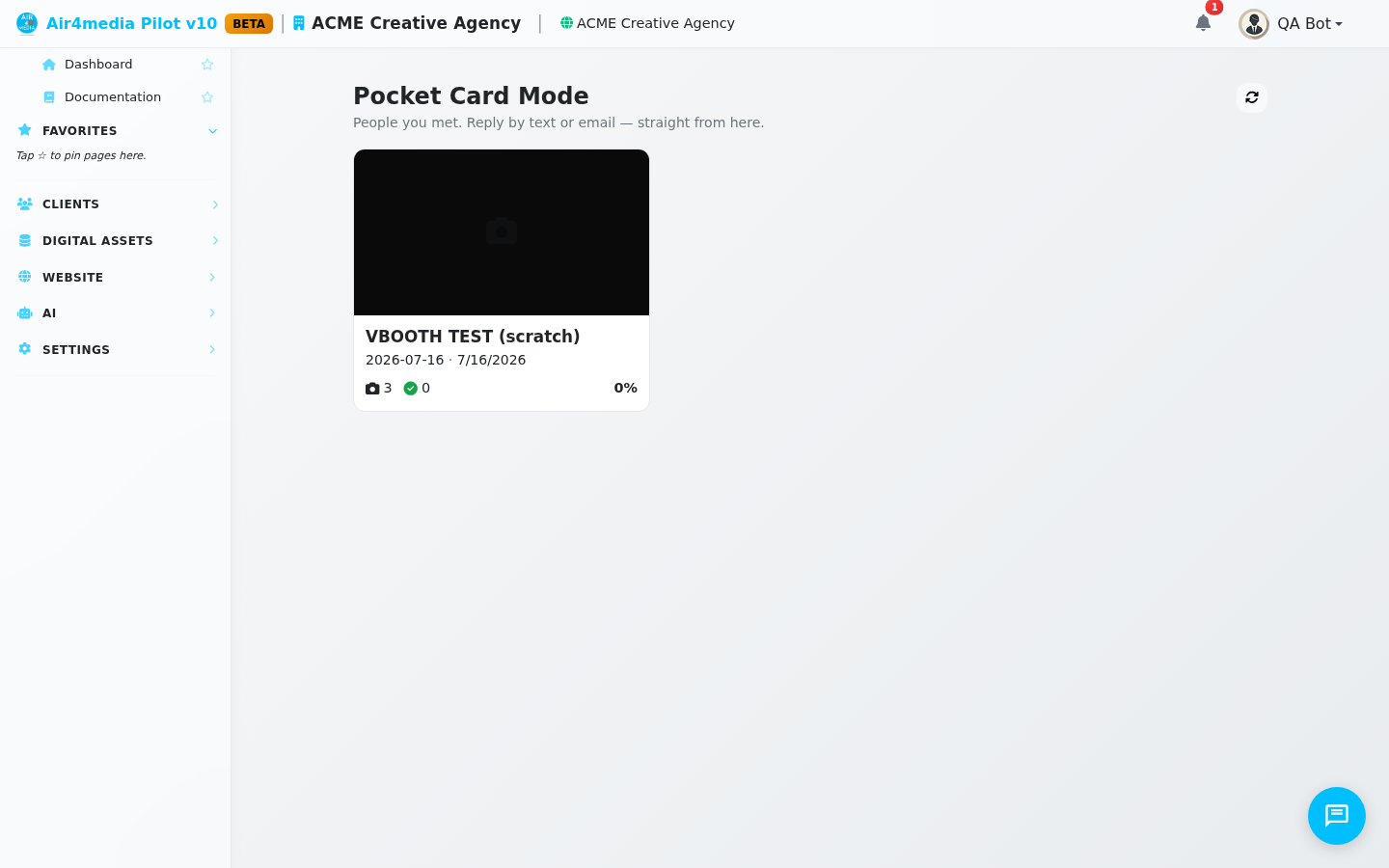
Pocket Card Mode
Pocket Card Mode is your inbox for everyone who stepped through your photo booth. It organizes each event into a card grid, shows you who needs a follow-up, and lets you text or email them without ever leaving the page.
Key Features
-
Event grid: Every photobooth event with captures appears as a card — for example, "ACME Spring Showcase." Each card shows how many photos were taken, how many guests filled out the follow-up form, whether any replies are waiting, and the overall conversion rate.
-
Reply-needed alerts: A red badge appears on any event or guest with an unanswered inbound text. Those guests float to the top of the list so nothing slips through after a busy event night.
-
Guest feed per event: Click any event card to see every guest, sorted by most recent activity first. Each row shows their booth photo with an AI-variant thumbnail, their name, phone, email, and the last thing that happened — a text in, a form fill, or a booth capture.
-
Status at a glance: Every guest shows one of three states — "🔴 Reply needed" if they texted back, "✅ Responded" if they completed the pocket card form, or "⏳ Awaiting form" if you haven't heard from them yet.
-
Text and email directly from the list: Every guest row has a Text button and, if you have their email address, an Email button. Click either to open a reply panel pre-addressed to that person.
-
Quick-reply templates: Three starter messages are built in — an apology if the kiosk form had a glitch, a friendly check-in, and an offer to send more AI photo variants. One click fills the message box so you can edit and send.
-
Live refresh: After you send a reply the guest list reloads automatically and status badges update. A refresh button in the top-right corner is always available.
How to Use
- Open Pocket Card Mode from the sidebar. Your events load as a card grid.
- Find the event you want to follow up on — for example, "ACME Summer Client Party" — and click its card.
- The guest list opens. Guests with a red "Reply needed" badge appear at the top.
- Click Text to send an SMS, or Email to send an email.
- In the reply panel, write your message — or pick a template like "Check-in" or "More AI variants" to start from a pre-written message.
- Click Send Text or Send Email. The badge clears and the guest's status updates immediately.
Tips
- The conversion rate on each event card is the share of booth captures who went on to fill out the pocket card form — a quick signal for which events drove the most engagement.
- If a guest appears without a name, their phone number shows instead. You can still text them directly.
- The small AI photo thumbnail in the corner of each guest's portrait is the variant the booth generated for them. Mentioning it in your follow-up tends to get a quick response.
- Guests who texted back within the last seven days trigger the red badge on the event card itself — worth checking the grid the morning after any event.