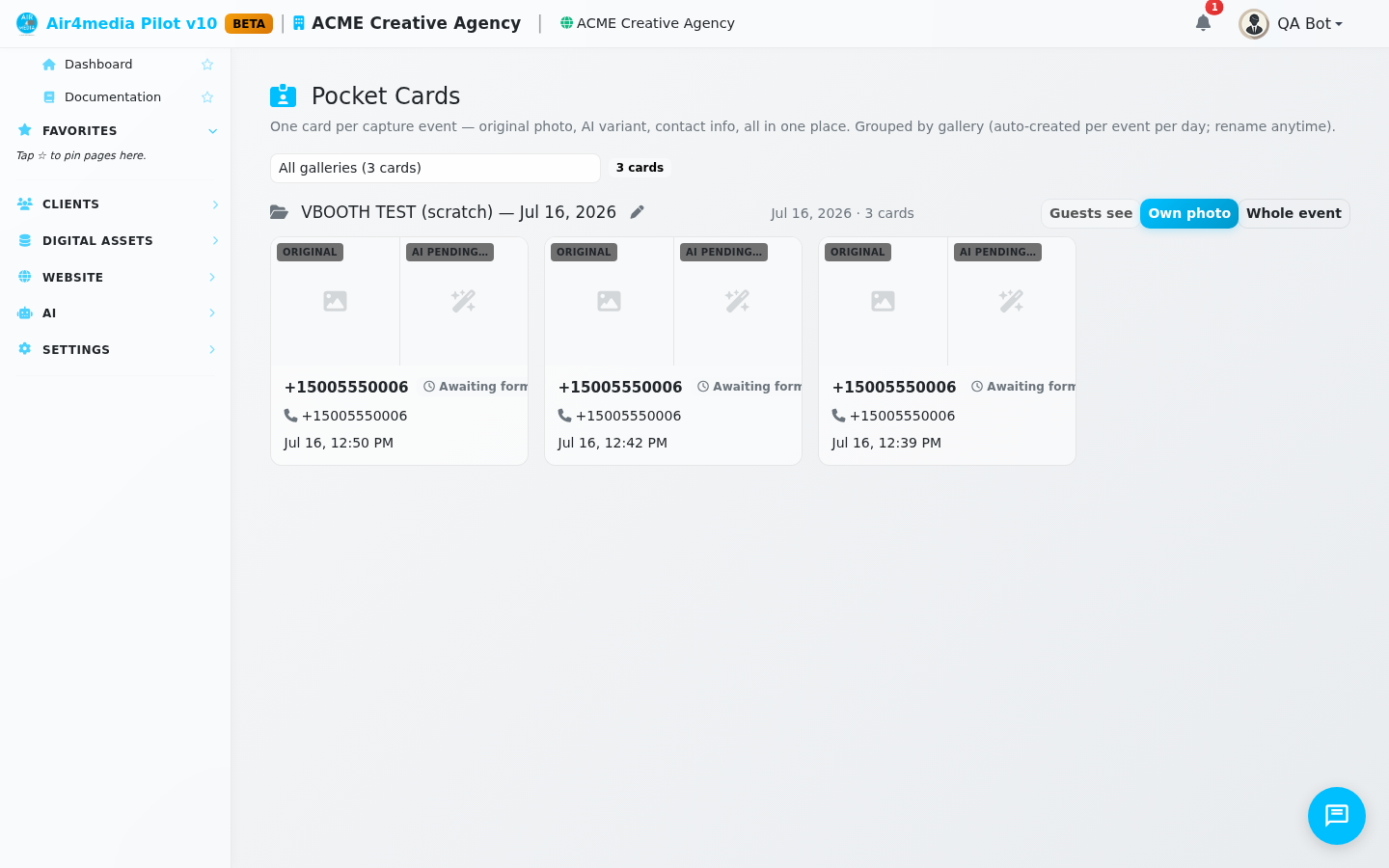
Pocket Cards
Pocket Cards is your photobooth event command center. Every time a guest steps in front of your booth at an activation, a card is automatically created — showing their original photo, the AI-styled version, and their contact details, all in one place. Cards are grouped into galleries by event and date, so you can instantly find any capture from any activation ACME Creative Agency has run.
Key Features
- Side-by-side photo comparison: Each card shows the original booth photo on the left and the AI-generated variant on the right — you can see both versions at a glance without opening anything.
- Contact details on every card: Guest name, phone, and email appear directly on the card. Once a guest fills out their follow-up form, their details update automatically.
- Responded indicator: A green "Responded" badge marks guests who completed the follow-up form. Cards still waiting show an "Awaiting form" status so you always know who to follow up with.
- Auto-organized into galleries: Captures group into galleries — one per event per day — so a busy activation weekend organizes itself. No manual sorting required.
- Rename galleries: Click the pencil icon next to any gallery heading to give it a custom label, such as "Launch Night – VIP Lounge" instead of the default date-based name.
- Guest gallery visibility: For each event-linked gallery, choose whether guests who open their personal photo page see only their own image, or the full event gallery. Toggle between "Own photo" and "Whole event" per gallery.
- Filter by gallery: Use the gallery dropdown at the top right to focus on a single activation — useful when reviewing captures from one specific event.
- Full card detail: Click any card to open a detailed view with both photos at full size, complete contact information, the event name, exact capture time, lead stage, and newsletter opt-in status.
How to Use
- Open Pocket Cards from the main navigation. Your captures load automatically, newest galleries first.
- Use the gallery filter at the top right to narrow down to a specific event, or leave it on "All galleries" to see everything across all activations.
- Browse the grid — each card shows the photo pair, guest name, and response status at a glance.
- Click any card to open the full detail panel, where you can review both photos side by side and see the complete contact snapshot and lead stage.
- To rename a gallery, click the small pencil icon next to the gallery heading and type the new name.
- To control what guests see when they visit their personal photo page, use the "Guests see" toggle on each event gallery — choose "Own photo" to keep it personal, or "Whole event" to let them browse the full gallery.
Tips
- The card count shown next to each gallery name is a quick sanity check after a live event — verify all booth captures arrived without opening every card.
- Newsletter opt-in is shown in the card detail, so you always know which guests to add to your next mailing.
- New captures from a live activation land here automatically — refresh the page during or after an event to see them appear in real time.