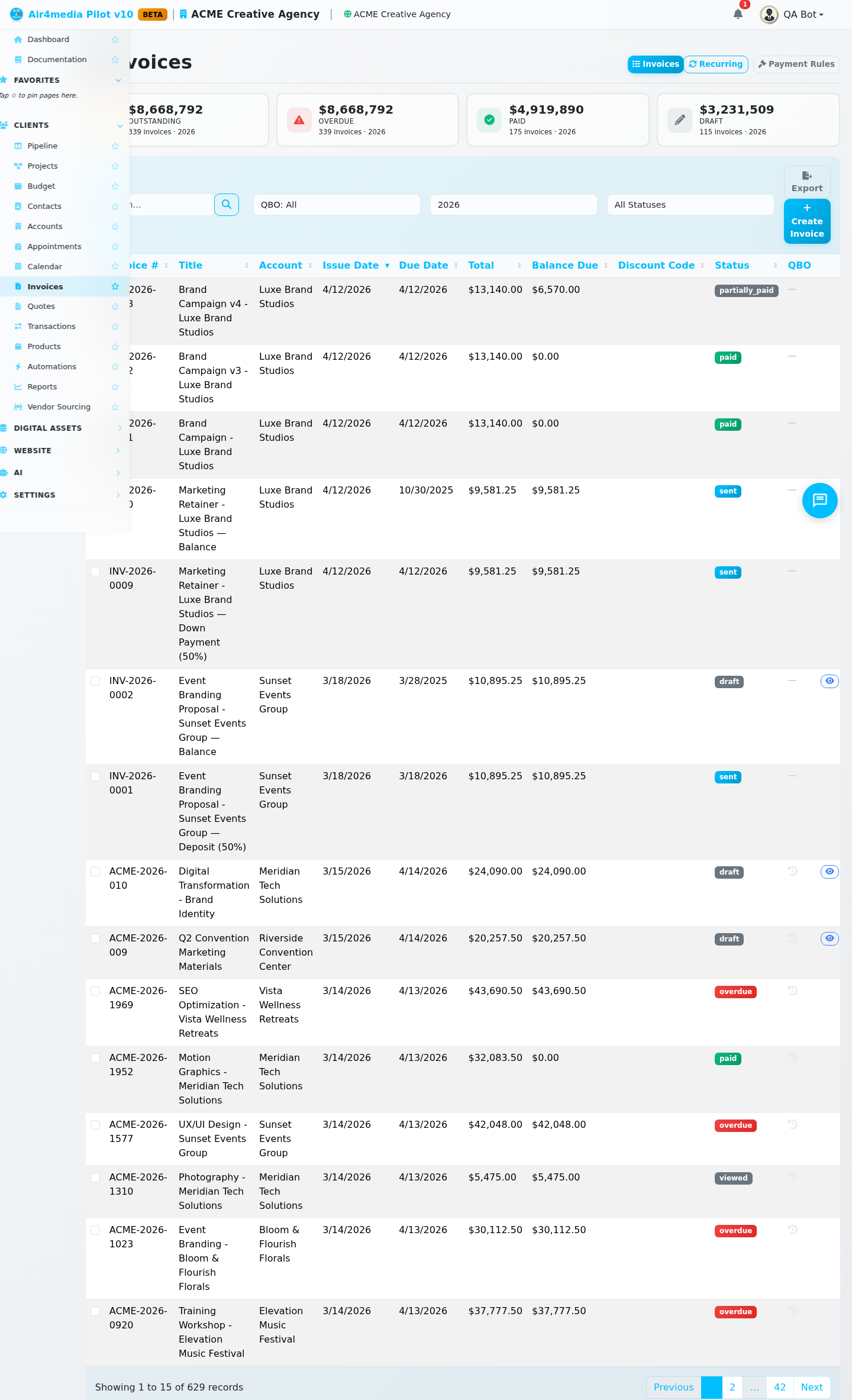
Invoices
Create, send, and track invoices for your clients — including one-time and recurring billing on autopilot.
Key Features
- Invoice Builder: Add line items using custom entries, products from your catalog, or pre-built packages — each with name, description, quantity, unit, and price
- Automatic Numbering: Invoices are numbered sequentially (e.g., INV-2026-0001)
- Multi-Currency: Bill in USD, EUR, GBP, CAD, or AUD
- Discounts & Tax: Apply fixed or percentage discounts; set a tax rate per line item
- Payment Methods: Accept Stripe, bank transfer, check, PayPal, Zelle, cash, or other
- Public Payment Link: Share a secure link so clients can view and pay — disable it anytime
- Payment Recording: Log partial or full payments with method, reference, and notes
- Payment Reminders: Send a quick payment request email from any unpaid invoice without re-sending the full invoice
- Recurring Invoices: Auto-generate invoices weekly, bi-weekly, monthly, quarterly, semi-annually, or annually — with optional auto-send directly to your client
- Renewal Reminders: Automatically email clients 3, 7, 14, or 30 days before a recurring invoice is due
- Payment Rules: Define reusable payment terms to apply consistently across invoices
- Project & Contract Linking: Attach invoices to a project or contract for better organization
- Dashboard Stats: See total revenue, outstanding balance, overdue count, and paid count at a glance
How to Use
Create an Invoice
- Click New Invoice, select the client account — for example, one of ACME Creative Agency's active clients — and an optional contact
- Set the title, issue date, and due date
- Add line items using the Custom Item, Product, or Package buttons
- Apply a discount and/or tax rate if needed
- Choose which payment methods to accept
- Optionally link to a project or contract and fill in billing info
- Add internal notes or client-facing terms, then click Save Invoice
Send an Invoice
- Open the invoice and click Send to email it to the client
- Or click Mark as Sent if you sent it another way
- Share the public link — the invoice moves to Viewed once the client opens it
Record a Payment
- Open the invoice and click Record Payment
- Enter the amount, date, method, and an optional reference or note
- Save — the status updates automatically (Partially Paid → Paid)
Set Up Recurring Billing
- Open any invoice and click Make Recurring
- Name the schedule, choose the frequency, and set a start date
- Enable Auto-Send to email each generated invoice to the client automatically
- Optionally set a renewal reminder (3, 7, 14, or 30 days before each invoice)
- Save — new invoices generate on schedule without any manual work
Manage Schedules
- Pause, resume, or cancel a recurring schedule at any time from the row menu
- Click View Schedule on any recurring invoice to see its frequency, next date, auto-send status, and how many invoices have been generated
Invoice Statuses
| Status | Meaning |
|---|---|
| Draft | Not yet sent — can be edited or deleted |
| Sent | Delivered to the client |
| Viewed | Client has opened the public link |
| Partially Paid | Payment received but balance remains |
| Paid | Fully paid |
| Overdue | Past due date with an outstanding balance |
| Cancelled | Closed without payment — can be deleted |
Tips
- Use Duplicate to copy an invoice for a similar client or project
- Use Revert to Draft to edit a sent, viewed, or overdue invoice before resending
- Use Request Payment to nudge a client with a reminder email — no need to resend the full invoice
- Use Copy Link from the list to grab the public payment link without opening the invoice
- Use Send Selected to email multiple invoices to clients in one action
- Filter by Year or Status to quickly find what you need
- Delete draft and cancelled invoices in bulk using the checkbox selection
- Use Mark as Sent in bulk to update multiple invoices at once
- Click Payment Rules in the page header to manage reusable billing terms
- The Outstanding stat includes all sent, viewed, and partially paid invoices