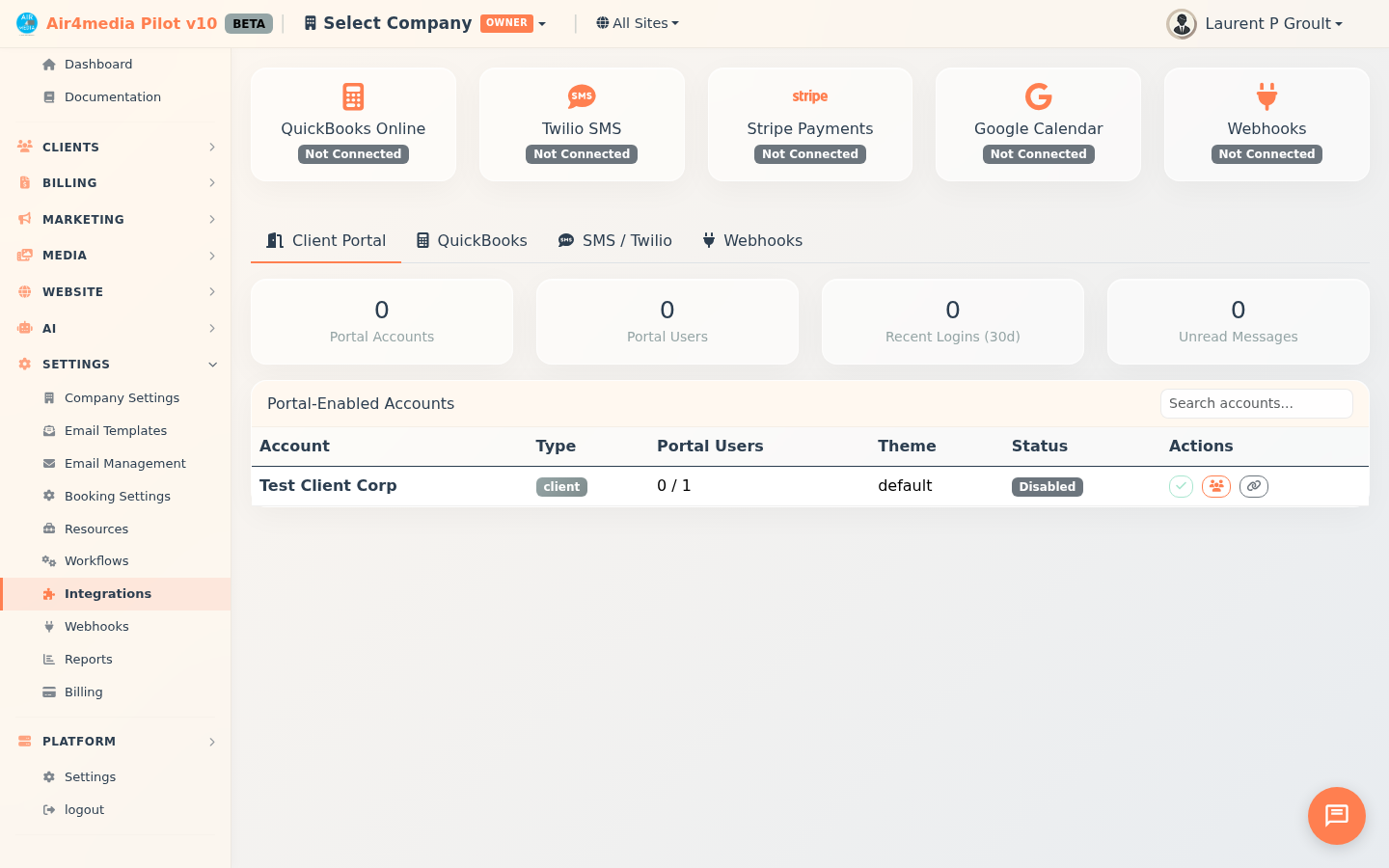
Integrations
Connect your account with external services — payments, calendars, video calls, messaging, and more — all managed from one place. Status cards at the top of the page give you an instant overview of what's connected and what needs attention.
Key Features
- Status Overview: Cards at the top show each integration's state at a glance — green for active, grey for not connected, orange for setup incomplete
- Stripe Connect: Accept online payments on invoices by linking your Stripe account — supports both test and live mode
- Client Portal: Give clients at accounts like ACME Creative Agency a secure login to view projects, invoices, contracts, and send you messages
- QuickBooks: Sync invoices and customer records to QuickBooks Online automatically
- Google Calendar: Two-way appointment sync with Google Calendar; selecting "Google Meet" as the location auto-generates a Meet link
- Zoom: Auto-create Zoom meeting links when you book appointments with "Zoom" as the location type
- Google Workspace: Provision and manage team email accounts on your domain
- SMS / Twilio: Send text messages to contacts with built-in templates and a live character counter
- Webhooks: Trigger actions in tools like Zapier, Make, or Slack when events occur in your CRM
How to Use
Stripe Connect
- Click the Stripe tab and click Connect Stripe Account — choose Test or Live mode
- Complete onboarding through Stripe's secure flow (business details, bank account, verification)
- Once active, your business name, charges status, and payout status are displayed
- Use Stripe Dashboard to review payments, or Disconnect to unlink the account
- If the status shows "Setup Incomplete," click the prompt to resume verification with Stripe
Client Portal
- Click the Client Portal tab — stat cards show active portal accounts, users, recent logins, and unread messages
- Toggle the switch next to an account (e.g. ACME Creative Agency) to enable or disable portal access
- Click Manage Contacts to control which contacts at that account can log in, set their passwords, and copy the portal link
QuickBooks
- Click the QuickBooks tab — configure API credentials in Settings first, then click Connect QuickBooks
- Once connected, view synced accounts, pending items, failed records, and last sync time
- Click Sync All Invoices to queue all unsynced invoices in one step
Google Calendar
- Click the Google Calendar tab and click Connect Google Calendar
- Sign in with your Google account — only Calendar read/write access is requested
- Appointments sync both ways automatically; click Sync Now to force an immediate update
- Choose "Google Meet" as the appointment location when booking to auto-generate a Meet link
Zoom
- Click the Zoom tab and click Connect Zoom
- Authorize access through Zoom's secure login
- Once connected, selecting "Zoom" as the appointment location type auto-creates a meeting link
Google Workspace
- Click the Workspace tab and click Connect Google Workspace (requires super admin access)
- Click Create User to provision a new email account on your domain
- View all team members and their status, and click View Groups to manage distribution lists
SMS / Twilio
- Click the SMS tab and enter a phone number (e.g. +12125551234)
- Choose a template — appointment reminders, invoice reminders, follow-ups — or write a custom message
- The character counter shows your message length in real time (160-character limit per SMS)
- Click Send SMS — sent messages and replies appear in the history below
Webhooks
Click Go to Webhooks Manager to create and manage inbound and outbound webhooks. Outbound webhooks fire automatically when events like lead created, quote accepted, invoice paid, or appointment booked occur.
Tips
- Stripe uses OAuth — your login credentials are never stored here
- If Stripe shows "Setup Incomplete," click the card or tab and follow the prompt to finish verification with Stripe
- Portal access can be toggled per account at any time — clients lose or gain access immediately
- Google Calendar sync runs continuously; use Sync Now to force an immediate update
- QuickBooks sync runs in the background, so large batches won't slow you down
- Webhooks connect your CRM with tools like Zapier, Make, Slack, or any service that accepts HTTP requests