Invoicing
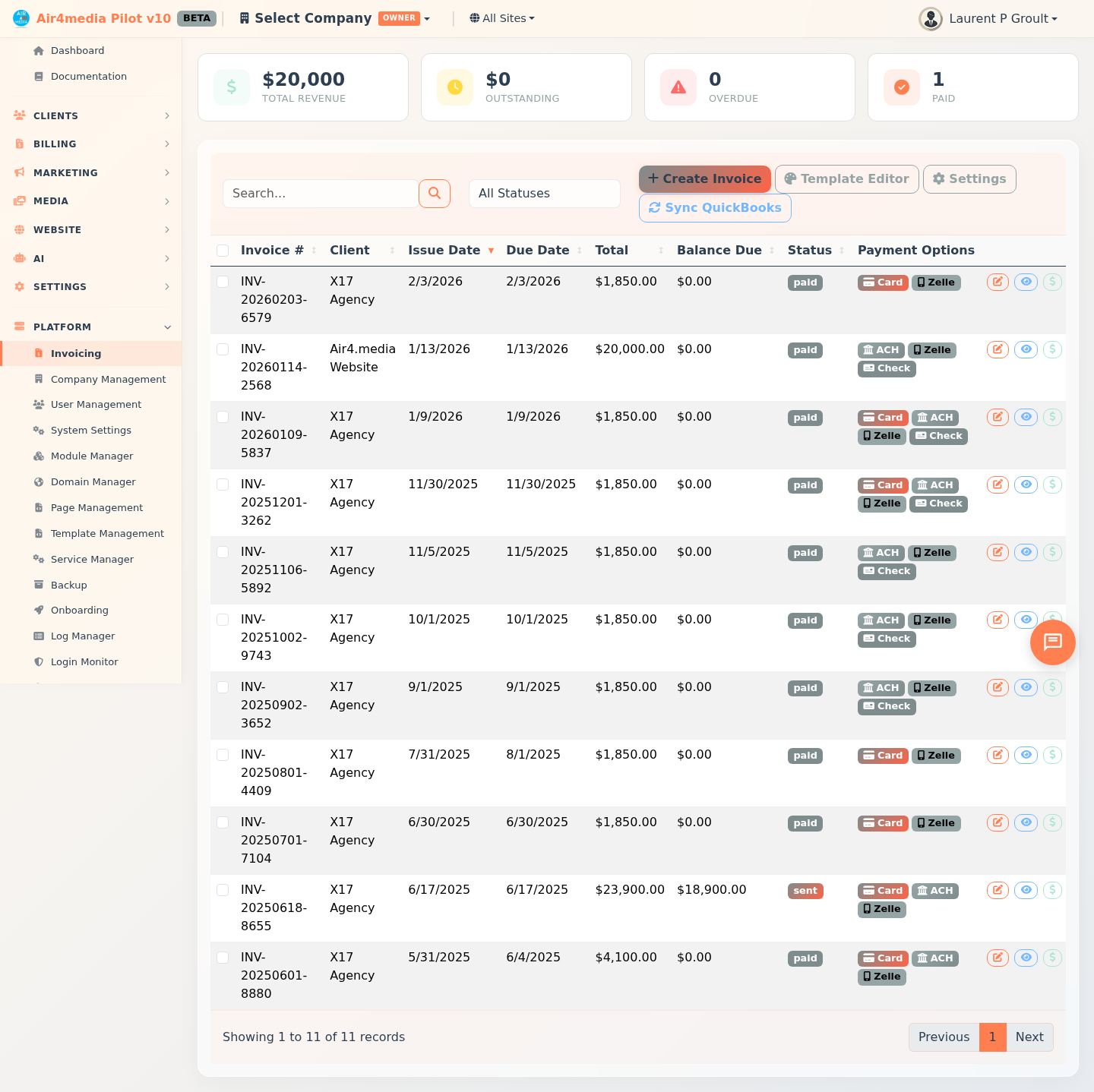
Create, send, and track professional invoices — from first draft to final payment — with online payment collection, full payment history, and your own branded invoice design.
Key Features
- Invoice Creation: Add line items, quantities, and rates; totals calculate in real time
- Online Payments: Accept credit cards via Stripe — clients pay directly from their invoice link; optionally pass the card processing fee to the client
- Multiple Payment Methods: Offer Stripe, ACH, Zelle, check, or wire transfer on any invoice
- Public Invoice Link: Every invoice gets a short, secure shareable link (inv.air4.link/…) — clients view and pay without logging in
- Status Tracking: Invoices move through Draft → Sent → Partially Paid → Paid automatically, or update manually
- Payment History: See all payments per invoice; edit manual entries or issue Stripe refunds directly
- Partial Payments: Record multiple payments — the balance updates automatically after each one
- Template Editor: Customize your invoice with your logo, brand colors, and footer text
- QuickBooks Export: Export selected invoices to QuickBooks in one click
- PDF Download: Download or print any invoice as a PDF
- Dashboard Stats: Total invoiced, outstanding balance, overdue count, and paid total at a glance — click any stat card to filter the list instantly
How to Use
Create an Invoice
- Click Create Invoice
- Select a client and set the issue and due dates
- Add line items — description, quantity, and rate; the total calculates automatically
- Choose which payment methods to offer (Stripe, ACH, Zelle, check, wire)
- Click Save to store as a draft
Send an Invoice
- Open an invoice and click Send
- Add recipients — contacts auto-suggest as you type; use To, CC, and BCC fields as needed
- Optionally type a personal note to include in the email
- Click Send Invoice — your client receives an email with a "View & Pay Invoice" button; the invoice moves from Draft to Sent automatically
Record a Payment
- Click Record Payment on any sent invoice
- Enter the amount, payment method, and date; save
- The balance updates automatically — status changes to Paid when settled in full
View Payments & Issue Refunds
- Click Payments on any invoice to open the payment history
- Edit manual payment entries or delete non-Stripe payments as needed
- For Stripe payments, click Refund, choose full or partial refund, select a reason, and confirm
Customize Your Invoice Design
- Click Template Editor in the toolbar
- Upload your logo, set your brand colors, and fill in your company details
- Add a footer note and save — all invoices update immediately
Tips
- Drafts are invisible to clients — finalize before sending
- Use Copy Link from any invoice row to share the payment link directly, without sending an email
- Click Pay Now in a row to open the client's payment page instantly for quick follow-up
- Select multiple invoices to batch-send emails, export to QuickBooks, or delete at once
- Use Mark as Sent or Mark as Draft from the row menu to adjust status manually
- The Overdue stat turns red when invoices are past due — click it to filter the list
- Only draft or cancelled invoices can be permanently deleted
- Connect your Stripe account in Settings to enable online card payments