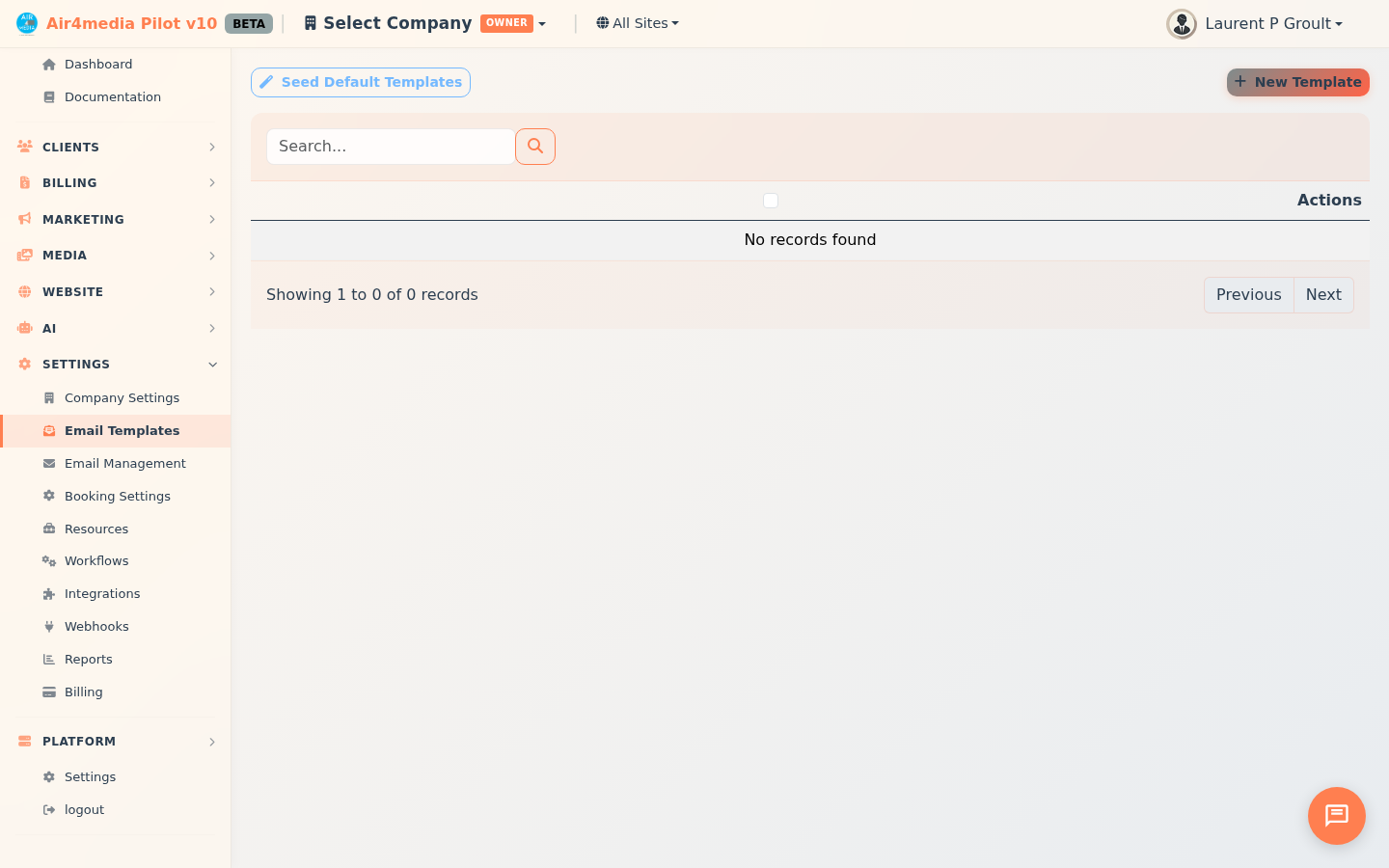
Email Templates
Create and manage reusable email templates for every stage of your client workflow — quotes, contracts, invoices, appointments, and more. ACME Creative Agency, for example, keeps ready-made templates for every client touchpoint, from a first quote to a final invoice reminder, so every message goes out polished and on-brand.
Key Features
- Template Library: All your standard emails in one place, organized by category and searchable by name or subject
- Merge Variables: Automatically personalize emails with contact names, project details, quote amounts, invoice numbers, and more — inserted with a single click
- Live Preview: See exactly how your email will look with realistic sample data filled in before ever using it
- Categories: Organize templates by type — Quotes, Contracts, Invoices, Appointments, Portal, and General
- Duplicate: Copy any template as a starting point — the editor opens immediately with the copy ready to edit
- Default Templates: Load 10 professionally written templates instantly to hit the ground running
How to Use
Creating a Template
- Click New Template in the top right
- Enter a name for the template (used internally — e.g. "Quote Follow-Up")
- Choose a category and set the status to Active or Inactive
- Write your subject line, optionally including merge variables
- Write the email body in the main editor — HTML formatting is supported
- Click any variable chip in the right panel to insert it at your cursor position
- Click Preview to check how the email looks with sample data
- Click Save Template
Using Variables
The variables panel on the right side of the editor lists all available merge tags, grouped by type:
- Contact — first name, last name, email, phone
- Account — company name, email, phone
- Project — name, start date, end date, venue
- Quote — number, total, valid until, link
- Contract — title, number, link
- Invoice — number, total, due date, link
- Appointment — type, date, time, location
- Company — your business name, phone, email
- Portal — client portal link
Click any chip to insert it at the current cursor position in the body.
Loading Default Templates
Click Seed Default Templates to instantly create 10 pre-built templates covering the most common CRM scenarios: quote sent, quote accepted, contract ready, invoice sent, payment received, appointment confirmation, appointment reminder, client portal welcome, follow-up, and thank you. Templates that already exist by name are skipped automatically, so it's safe to run more than once.
Managing Templates
Each row in the list has four actions:
- Edit — open the editor to modify the template
- Duplicate — create a copy and open it in the editor immediately
- Preview — view the rendered email with sample data substituted in
- Delete — permanently remove the template
Use the Category filter above the list to narrow results, or search by name or subject line.
Tips
- Use specific names so templates are easy to find — "Invoice Reminder – 7 Days" is clearer than just "Invoice"
- Always preview before using a new template to catch formatting issues or missing variables
- Set a template to Inactive to keep it saved without it appearing in active use — useful for seasonal or situational emails you don't need year-round
- Duplicate an existing template and tweak it rather than starting from scratch for similar emails