Events
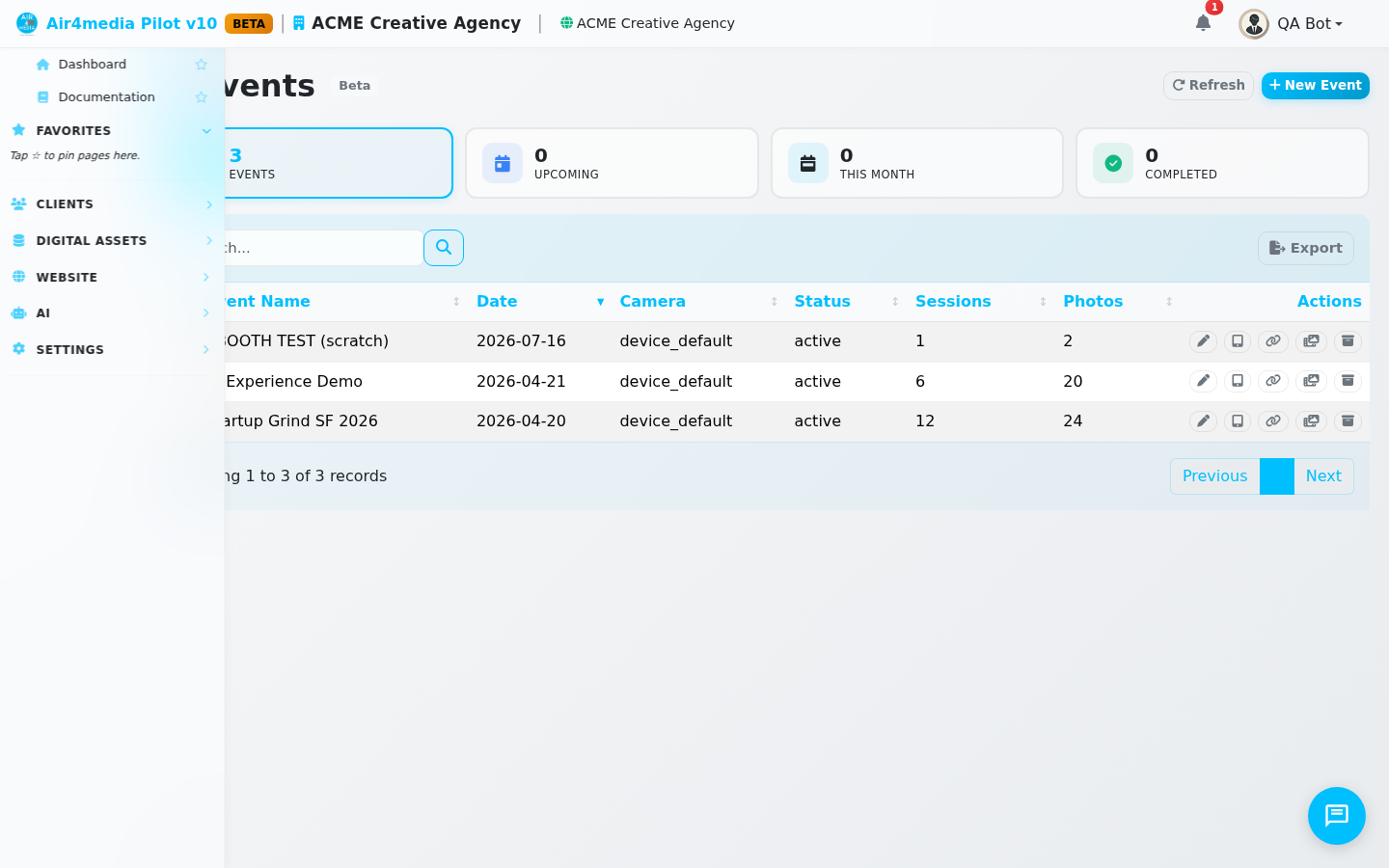
The Events page is where ACME Creative Agency manages all iPad photobooth activations — from brand launches to corporate galas. Each event is a fully configured kiosk experience: branded design, AI photo experiences, a review gate, and a guest gallery.
Key Features
- Event List & Stats: See all events at a glance with counts for upcoming, this month, and completed. Filter by status or camera type.
- Design Studio: Set brand colors, logo, overlay image, and the attract message guests see on the idle screen — with a live kiosk preview updating as you work.
- Experiences: Build a menu of capture options — standard photos, AI-styled transformations, video booths, and business card captures. Drag to reorder, enable or disable each.
- AI Photo Prompts: Write freeform prompts or use the guided builder (style, mood, pose, background) to create AI transformations. Browse a template library with presets like Renaissance portrait, Cyberpunk, or Pixar — then test any prompt against a sample photo before the event.
- Review Gate: Require guests to leave a Google or Yelp review before unlocking their gallery. Set the number of reviews required.
- SMS Sharing: Customize the text message guests receive with their gallery link, including their name and your company name.
- Event Hub: After the event, publish the guest gallery, browse captured photos and videos, download a ZIP archive, share with clients, and export the guest list as a spreadsheet.
How to Use
- Click New Event and enter the name, date, and description.
- On the Design tab, pick colors, upload your logo, and write the attract message guests see before tapping to start.
- On the Experiences tab, add capture types — Photo, AI Photo, Video, or Biz Card. For AI Photo, write a prompt or use the guided builder, then click Test Sample to preview before the event.
- On the Sharing tab, configure your review gate and customize the SMS guests receive.
- On the Settings tab, set the operator exit PIN and adjust timeouts for your venue.
- Click Save, then use Copy Kiosk URL or Open Kiosk to get the link you'll load on the iPad.
- After the event, open the Hub tab to publish the gallery, download photos, and export your guest list.
Tips
- Use Test Sample before every event to confirm AI prompts look great — it catches surprises before guests arrive.
- The Guided Builder is the fastest way to get started: pick a style, mood, and background from dropdowns and watch the prompt write itself.
- Assign an emoji to each AI prompt so guests can instantly spot their favorite style on the selection screen.