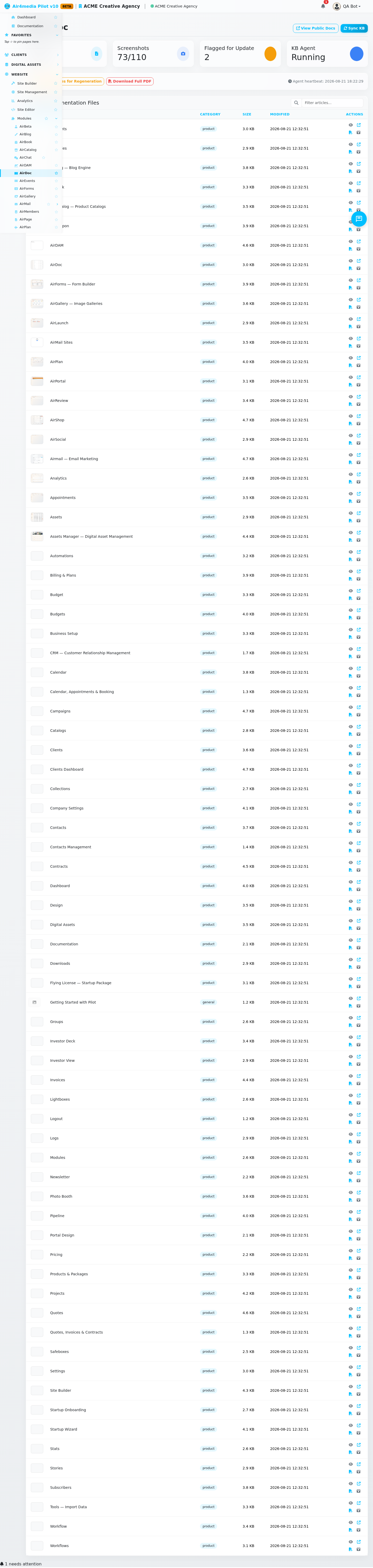
AirDoc
AirDoc is your knowledge base management dashboard — a central place to view, preview, and manage all help documentation for your platform.
Key Features
- KB Article Library: Browse all knowledge base articles in one table with thumbnail previews (hover to zoom), category labels, file sizes, and last-modified dates.
- Article Preview: Read any article in a formatted panel, with a screenshot banner displayed at the top when one is available.
- Screenshot Lightbox: Click any thumbnail to view it full-size in an overlay — press Escape or click outside to close.
- Retake Screenshot: Refresh the screenshot for any article with one click — the system captures and uploads the latest version automatically.
- AirChat Sync: Push all KB articles into AirChat's knowledge base so your AI assistant can answer questions based on the latest documentation.
- Regeneration Control: Flag all pages for fresh documentation — the KB Agent will rewrite outdated articles on its next cycle.
- Public Docs Link: Jump directly to the public-facing support site to see exactly what your users see.
- PDF Export: Download any individual article or the full documentation set as a PDF.
Dashboard Stats
Four cards at the top give you an at-a-glance view of your KB health:
- KB Articles — total number of documentation files
- Screenshots — how many articles have a screenshot (shown as count/total)
- Flagged for Update — articles currently queued for regeneration
- KB Agent — whether the documentation agent is running; its last heartbeat time appears in the actions bar
How to Use
- Open AirDoc from the admin menu.
- The article list loads automatically. Use the Filter box in the top-right of the table to search by title or category.
- Click the eye icon on any row to open a formatted preview of that article.
- Click a screenshot thumbnail to expand it full-size — press Escape or click outside to close.
- Click the camera icon on any row to retake its screenshot, useful after a page has been redesigned.
- To push all articles to AirChat, click Sync KB in the toolbar and confirm.
- To queue all pages for fresh documentation, click Flag All Pages for Regeneration and confirm.
- Use Download Full PDF to export the entire documentation set, or click the PDF icon on any row for a single article.
- Use View Public Docs to check the live support site as your users see it.
Tips
- Run Sync KB after any significant documentation update to keep AirChat accurate.
- The Flagged for Update count drops to zero once the KB Agent completes its regeneration cycle.
- Each article row has four action icons: preview, view public page, download PDF, and retake screenshot.
- Articles without a screenshot show a placeholder icon — use the camera button to add one.