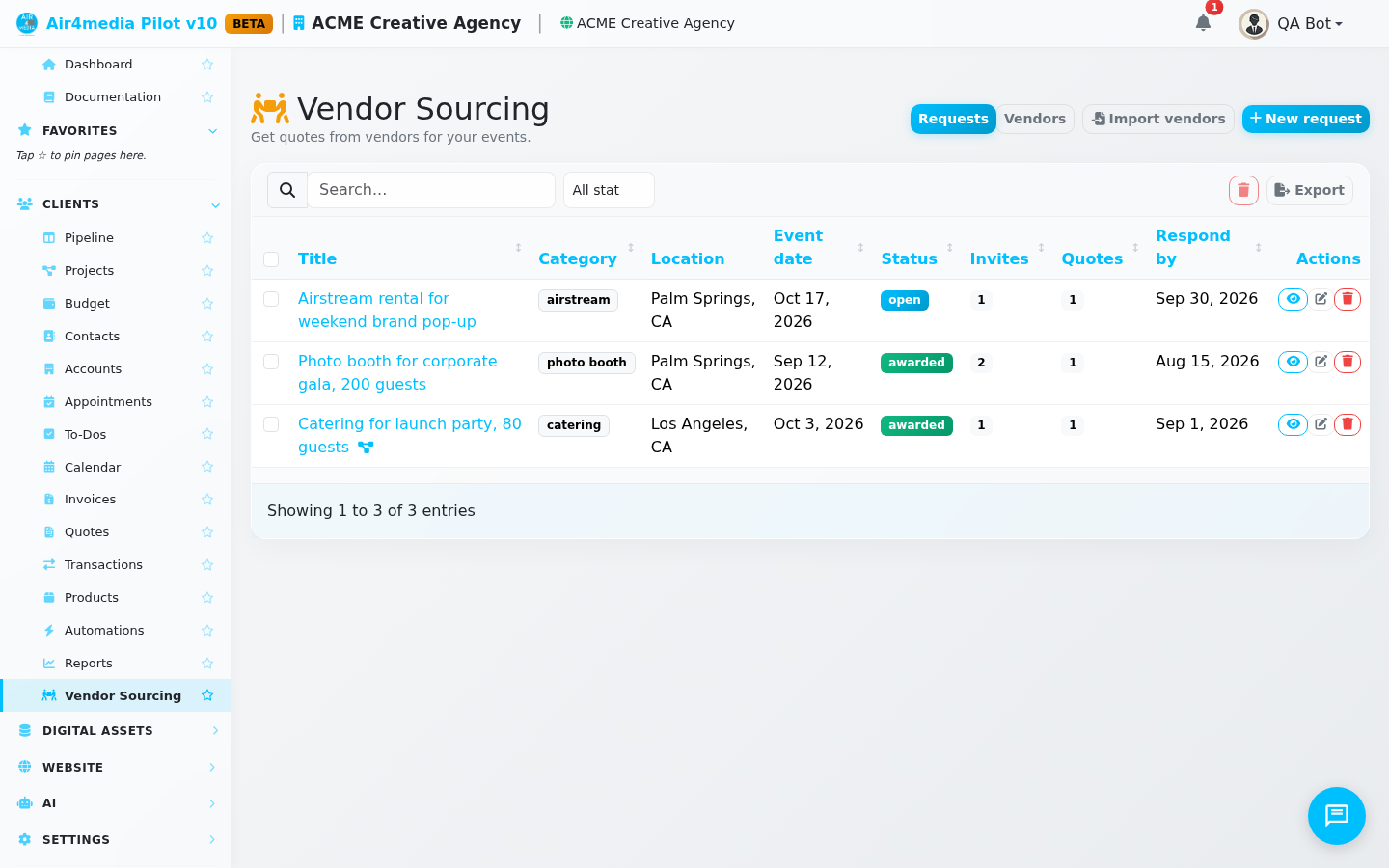
Vendor Sourcing
Vendor Sourcing is where ACME Creative Agency sends requests for quotes, compares bids, awards the work, and manages all the paperwork — in one place. Think of it as a private bidding room for each project need.
Key Features
- Requests board: Every sourcing need lives as a named request — for example, "Q4 Brand Activation Photographer" — with a category, location, event date, and an internal budget note vendors never see.
- Vendor finder: Search your contacts by keyword, city, or state. Vendors are added as draft invites — nothing goes out until you're ready.
- Multi-channel invites: Send by email, SMS, or both. Preview and edit every message before it leaves, or bulk-send all drafts at once.
- Bid tracking: See each vendor's amount, availability, and notes in one table. Shortlist or reject bids as you narrow down, then award the winner.
- Next-steps hub: After awarding, one-click actions let you notify the winner, pass on the others, create a client quote, place a booking order, and draft a vendor agreement.
- Order management: Track the confirmed booking with a PO number, dates, vendor notes, and a status from draft through confirmed.
- Documents: Vendors upload proposals via a private link; you can attach agreements and confirmations — all stored and downloadable from the request.
How to Use
- Click New request and fill in the title, category, scope (what vendors see), location, event date, and a respond-by deadline. Put the budget in the internal Budget note field under More options — vendors never see it.
- Open the request and click Add vendors. Filter by keyword or city, select contacts, and choose email, SMS, or both. They land in the list as drafts.
- Click Send all drafts to dispatch everything, or Preview and send on any row to review that message individually first.
- Watch the Invite and Bid columns update as vendors submit quotes. Use Shortlist or Reject to manage the field; send a Reminder to anyone who hasn't replied.
- Click Award on the winning bid. The request moves to Awarded and the next-steps panel appears.
- From next steps: notify the winner, pass on the others, create a client quote, and place the booking order — each is a single button.
- Upload or download supporting documents from the Documents section inside any request.
- Click Close this request when done. You can reopen it any time.
Tips
- The scope description goes to every vendor as written — keep client name and budget out of it.
- The Vendors tab shows every contact you've ever invited and lets you add them to a new request in seconds.
- Vendor proposals uploaded through their private link appear automatically in Documents — no chasing email attachments.