Transactions
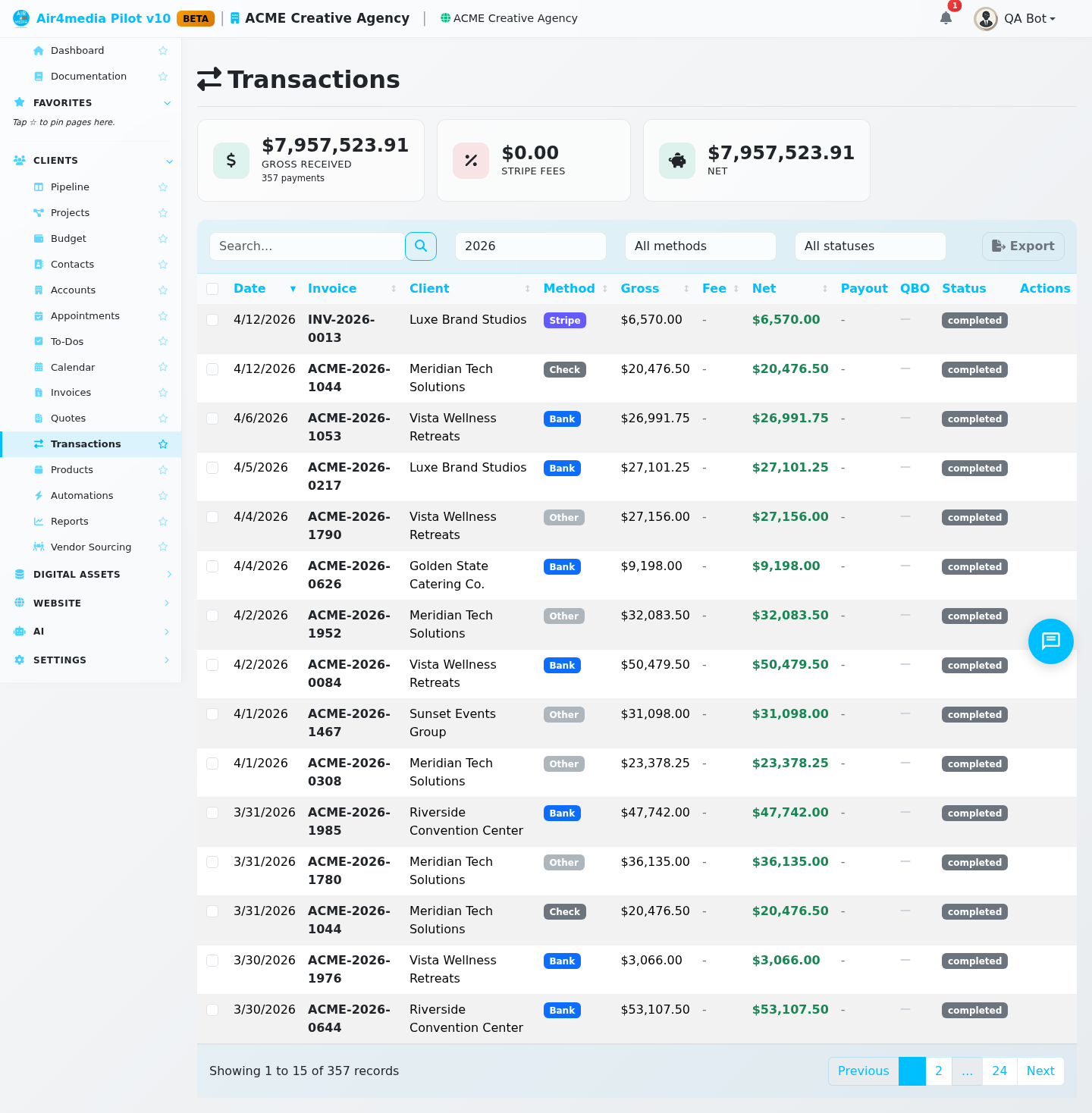
The Transactions page gives ACME Creative Agency a complete line-by-line record of every payment received across all invoices — including what Stripe took in fees, what landed in your account as net, which Stripe payout the money belongs to, and whether each payment has been pushed to QuickBooks.
Key Features
- Live money summary: Three cards at the top — Gross received, Stripe fees, and Net — reflect the current filter view and count only completed payments. Change the year or method filter and the totals update instantly.
- Full payment history: Every payment line appears with its date, invoice number, client name, amount, and status. For ACME Creative Agency this means Stripe card payments, bank transfers, checks, and cash entries all appear in one unified view.
- Stripe fee breakdown: For card payments, the Gross, Fee, and Net columns show exactly what Stripe charged and what you kept — the fee appears in red and the net in green.
- Payout tracking: The Payout column shows the abbreviated deposit batch reference for each Stripe payment, so you can trace a payment back to the exact bank deposit it arrived in.
- QuickBooks sync status: A green checkmark in the QBO column means the payment is mapped in QuickBooks. A gray dash means it hasn't been synced yet — useful for spotting gaps before reconciliation.
- Payment method badges: Color-coded labels — purple for Stripe, blue for bank transfer, gray for check, green for cash — let you scan the payment mix at a glance.
How to Use
- Open Transactions from the sidebar under your company.
- The list defaults to the current year. Use the Year dropdown to switch to a past year, or select All years to see the complete history.
- Use the Method filter to focus on a specific payment type — for example, select Stripe to review all card payments and their fee deductions.
- Use the Status filter to isolate completed payments, flag pending ones, or review refunds or failures.
- Type in the search box to find a specific invoice number, client name, or payment reference.
- Click any column header — Date, Invoice, Client, Gross, Fee, or Net — to re-sort the list.
- The three summary cards at the top always reflect the filtered results, giving you a running total for whatever slice you're viewing.
Tips
- The summary cards count only completed payments — pending or refunded entries are excluded from those totals, though they still appear in the list below.
- The Net column shows the actual amount received for Stripe payments. For checks, cash, or bank transfers where no fee was captured, Net equals the full payment amount.
- Use Status: Refunded to quickly surface reversed payments that may need attention in your books.
- Combining Year and Method filters is the fastest way to build a year-end summary of Stripe revenue and fees for tax or accounting purposes.
- The QBO column is a quick sanity check before closing a month — any gray dashes on completed payments may need follow-up in QuickBooks.