Stories
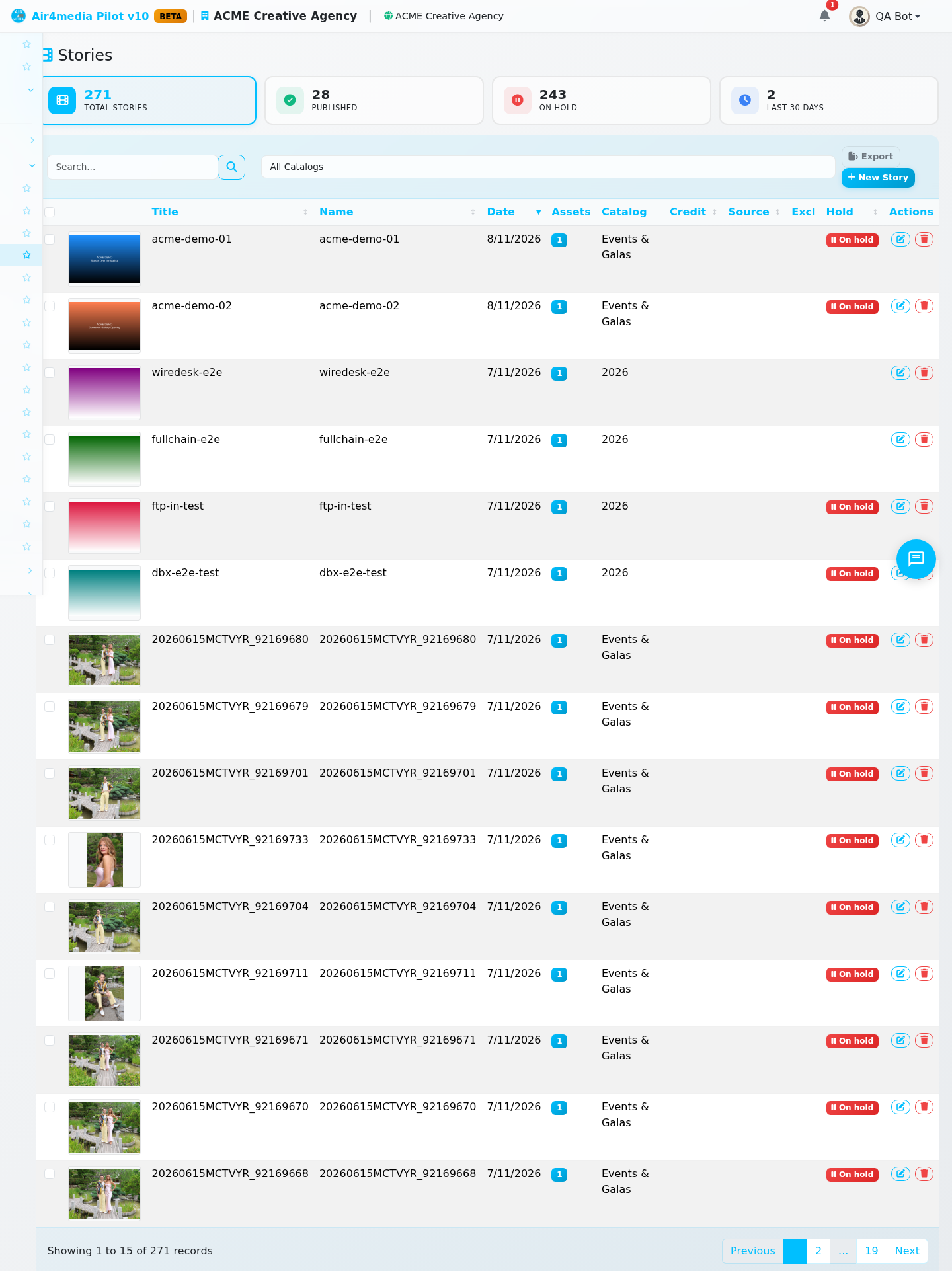
Browse and manage your DAM stories — each story groups a set of media assets under a single subject, such as a campaign shoot, a product series, or a press event. For ACME Creative Agency, this might include a "Spring Collection 2025" shoot or a brand launch event.
Key Features
- Story List: View all stories with thumbnail, title, date, catalog, credit, source, and asset count at a glance
- Exclusive Badge: Stories marked as exclusive display a gold "Excl" badge with a star icon — useful for spotting premium or priority content
- Asset Count: See how many assets belong to each story directly in the list, without opening it
- Catalog Filter: Use the dropdown to narrow the list to stories from a specific catalog
- Search: Find stories by keyword across title, description, credit, tags, and location — results update live
- Story Detail: Click Edit on any row to open a full detail panel showing all metadata and a scrollable grid of the story's assets
- Asset Preview: Click any thumbnail inside a story detail to view full asset metadata — filename, keywords, location, credit, file size, and more
- How stories are made: A story is created when photos are published into it (by FTP, an upload, FotoTrafiX, an approval or Incoming), and it takes its title, caption and credit from its first photo. There is no empty story to create by hand
- Deleting: Deleting a photo hides it everywhere in the portal while keeping the file, so it can be restored. A story can be deleted once it shows no photo; a story that only holds deleted photos is hidden and kept
- Stats Bar: Live counts at the top show total stories, assets, cloud-hosted files, accounts, and downloads for the selected site
How to Use
- Select a DAM site from the site selector in the top bar — the story list loads automatically
- Browse stories sorted by date, newest first, by default
- Use the Search box to filter by keyword — results update live across title, credit, tags, and more
- Use the Catalog dropdown to show only stories from a specific catalog
- Click any sortable column header (Title, Date, Assets, Credit) to re-sort the list
- Click Edit on any row to open the story detail panel
- In the detail panel, review the story's metadata (catalog, credit, source, location, tags, exclusive status) and scroll down to see all assets in a thumbnail grid
- Click any asset thumbnail to open its full metadata — filename, keywords, size, location, and more
- To put photos into a story, publish them (FotoTrafiX, Incoming or an approval), or move existing photos with Move to another story from the Assets list
Tips
- If no stories appear, make sure a DAM site is selected in the topbar — the page shows a reminder if none is chosen
- The stats bar refreshes whenever you switch sites, giving an instant snapshot of total content volume
- Exclusive stories are flagged with a gold badge — handy when deciding which content to feature or promote first
- Use the Catalog filter together with Search to zero in on a specific subject within a large archive
- Asset counts in the list are a quick way to gauge which stories have the most content before opening them