Recordings
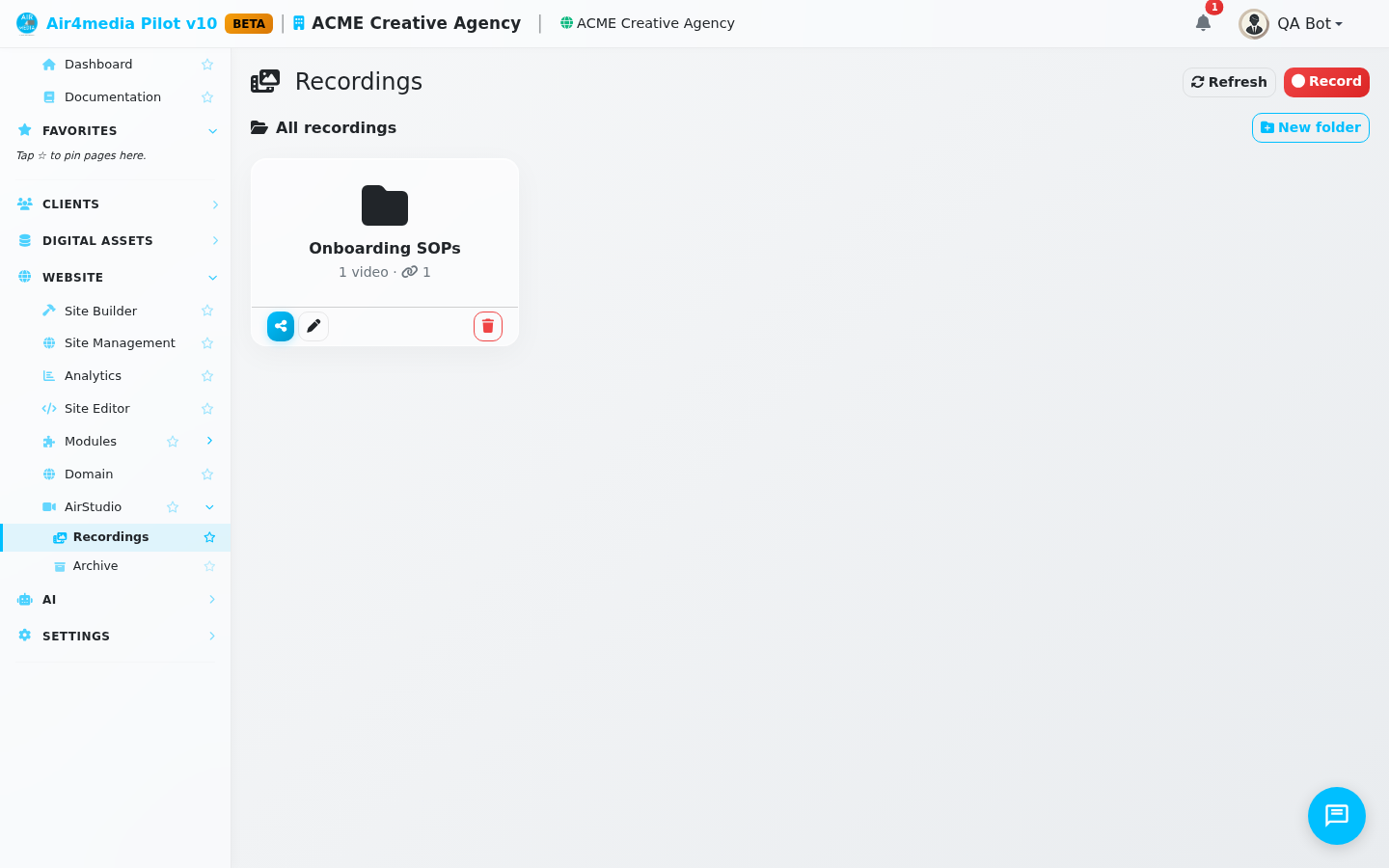
The Recordings library is where all your AirStudio videos live after a session. ACME Creative Agency's videos appear here as thumbnail cards the moment a recording finishes processing — ready to preview, download, or send to a client.
Key Features
- Card grid view: Each video shows a thumbnail, title, date recorded, resolution, and duration at a glance. A "Ready" badge confirms the file is fully processed.
- Instant playback: Click any thumbnail to open a full-size player. If a transcript was generated during recording, it appears beneath the video and captions are shown on-screen automatically.
- Notes: While watching a recording, type a note in the panel below the player and click Add. Notes show the author's name and timestamp, and any team member can add one.
- Private share links: Hit Share on any ready video to generate a private, unlisted link — only people you send it to can watch. No login required. A badge on the card shows how many times the link has been opened. You can stop sharing at any time.
- Folders: Organize recordings into named folders — for example, ACME might keep a "Q3 Campaign" folder for all videos from that shoot. Folders appear as cards in the grid. Click one to browse its videos. A whole folder can be shared as a single link so a client receives the entire set at once.
- Download: Save any ready video to your computer as an MP4 file. Title, creator, and copyright are embedded in the file automatically.
- Archive: Move older recordings out of the main view without deleting them. Archived videos move to the Archive page and can be restored anytime.
- Video info: Click the ⓘ button on any card to see full details — length, resolution, format, transcript status, notes count, and share statistics.
How to Use
- Open Recordings from the sidebar to see the video library.
- Click any thumbnail to watch the video in the built-in player. If a transcript exists, expand it below the video or read the on-screen captions.
- To share a single video, click Share on its card. Copy the private link and send it to whoever needs to watch it.
- To organize videos, click the folder button on any card and choose an existing folder or create a new one on the spot. Use New folder in the toolbar to create folders at any time.
- To share a whole folder, open it and click Send folder — one link covers all the videos inside.
- To keep the library tidy, click the archive icon on recordings you no longer need front and center. Find them later under Archive in the sidebar.
- To delete a video permanently, click the trash icon on the card and confirm. This cannot be undone.
Tips
- The video count in the top-right updates as you navigate into folders.
- If a card shows "Processing," the page refreshes automatically every few seconds — no need to keep clicking Refresh.
- Notes are a great way to leave time-stamped feedback on a recording. Your name is attached automatically so the team knows who wrote each one.
- Stopping a share link does not delete the video. You can always re-share later and the same link URL is reused, so any bookmarks your client saved still work.