Contracts
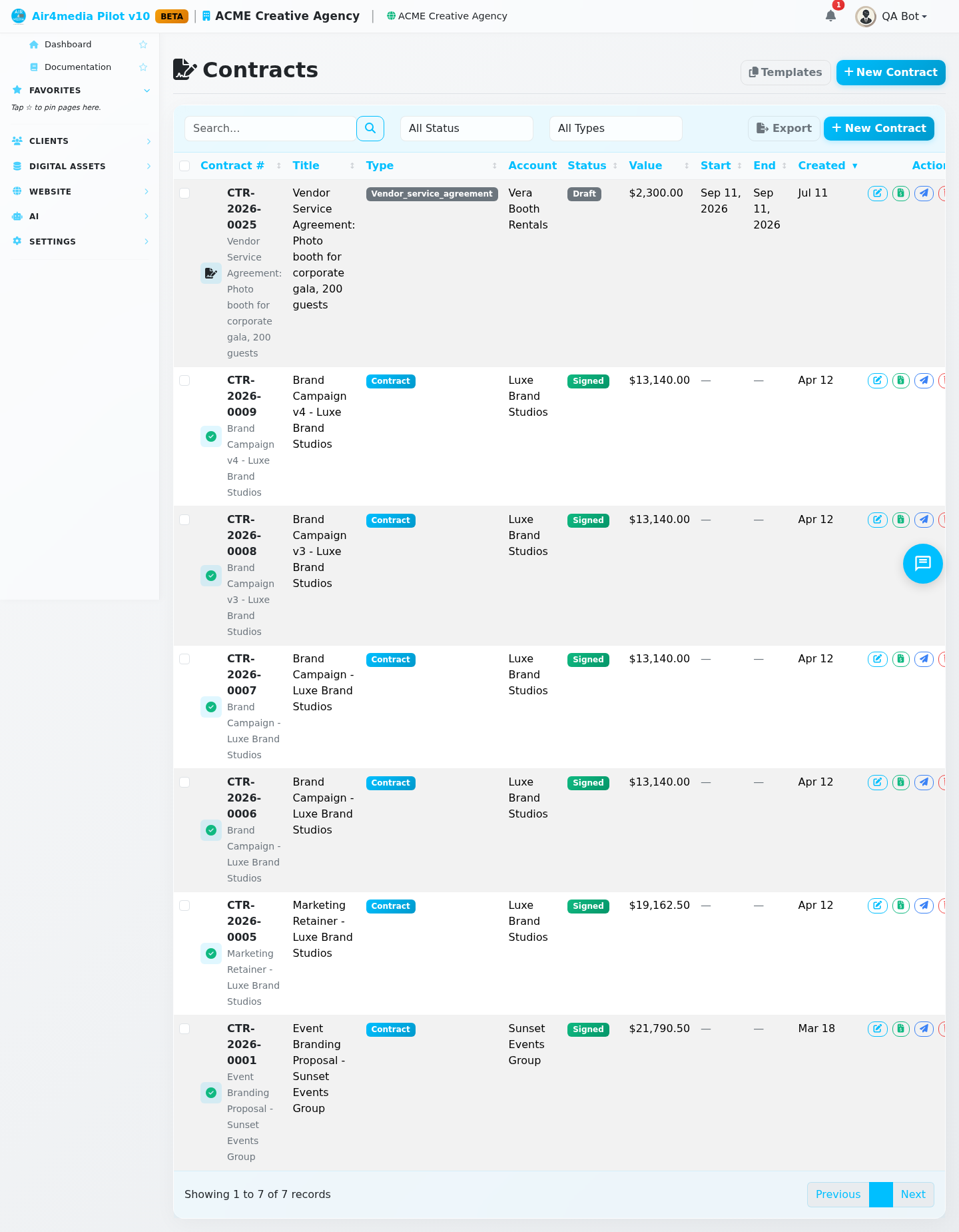
Create, send, and sign business contracts — all in one place. Manage the full contract lifecycle from draft to completion, with built-in digital signatures, PDF export, and invoice generation.
Key Features
- Contract Editor: Full-screen three-panel editor — details on the left, HTML content in the center, signatures on the right
- Contract Types: Contracts, Questionnaires, Subcontracts, Lead Forms, and Proposals — filter by type to find what you need
- Templates: Save and reuse contract templates (General, NDA, Service Agreement, SOW, Rental, Event) with dynamic variables that auto-fill with contract details
- Digital Signatures: Both you and your client sign directly in the browser using a signature pad — works with mouse or touchscreen on any device
- Status Tracking: Follow every contract through Draft → Sent → Signed → Active → Completed, or mark it Void or Expired
- Amendment Workflow: Amend a signed contract (with a reason), which clears signatures and requires both parties to re-sign
- PDF Download: Download a formatted PDF of any contract, including captured signatures
- Invoice Generation: Convert a signed or active contract into an invoice with one click
- Automations: When a contract is signed, connected automations fire — including moving the linked project to a Won stage and upgrading the account from Prospect to Client
How to Use
Create a Contract
- Click New Contract in the top bar
- Enter a title and select the account — a contract number is assigned automatically (e.g., CTR-2026-0001)
- Optionally link a project and contact
- Set start and end dates and a total value
- Add internal notes (visible only to you)
- Write the contract body in HTML, or pick a template to auto-fill the content
- Click Save Contract to save as a draft
Use Templates
- Click Templates to manage your saved templates
- Create a template using HTML and placeholder variables:
{{account_name}},{{contact_name}},{{contract_number}},{{contract_title}},{{total_value}},{{start_date}},{{end_date}},{{today}},{{year}} - When editing a contract, select a template from the dropdown and click Apply Template to replace the contract body
Send to a Client
- Open a draft contract and review the content
- Click Send to Client in the footer — the contract saves and the status changes to Sent
- The client receives a link to view and sign the contract on any device
Sign a Contract
- Open a contract and go to the Signatures panel on the right
- Draw your signature on the Provider pad, enter your printed name, and click Sign as Provider
- To record the client's signature, draw it on the Client pad and click Record Client Signature
- Once both parties have signed, the status updates to Signed automatically
Amend a Signed Contract
- Open a signed contract and click Amend in the footer
- Enter the reason for the amendment
- The contract returns to Draft, all signatures are cleared, and both parties must sign again
Generate an Invoice
From the list, click Generate Invoice in the row actions of a signed or active contract — an invoice is created and linked to the contract.
Download a PDF
Click PDF in the contract editor header, or use the Download PDF row action in the list.
Void a Contract
Open any sent, signed, or active contract and click Void in the footer.
Tips
- Use the Preview toggle in the editor to see the formatted contract before sending; existing contracts open in Preview mode by default
- Filter the list by Status or Type to quickly find specific contracts
- Search by contract number, title, or account name; click any column header to sort
- Select multiple contracts with the checkboxes to delete them in bulk
- Send a contract directly from the list using the row Send action — no need to open the editor
- Contracts created from a project page automatically pre-fill the account and project fields
- The signature pad works on mobile and tablet — each signature records the date and time for your records
- When both parties sign, any connected automations trigger automatically
- Default system templates cannot be deleted — only custom templates you create can be removed