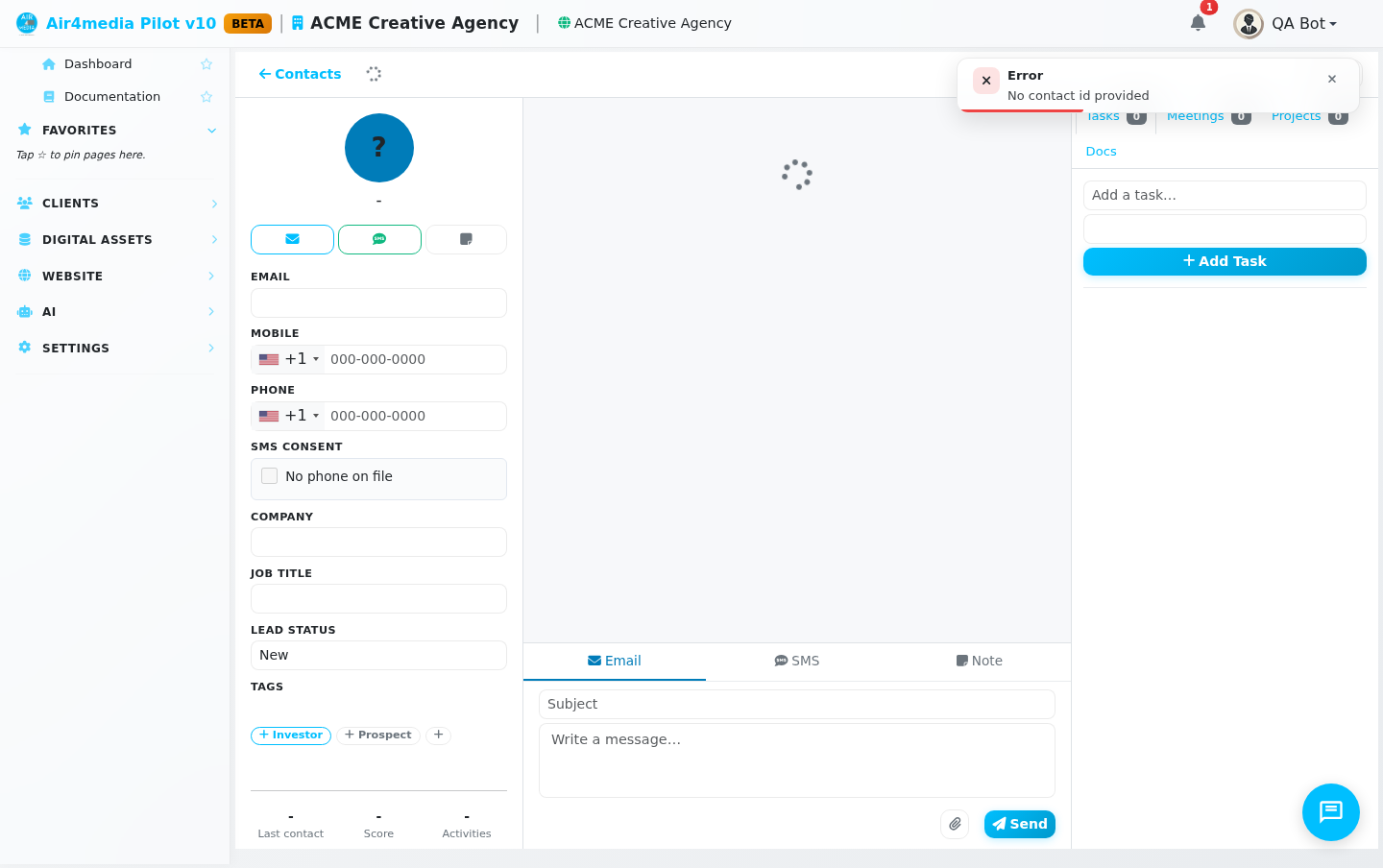
Contact Detail
The Contact Detail page gives you a complete picture of any person in your CRM — their info, full communication history, tasks, meetings, linked projects, and files, all in one place. At ACME Creative Agency, opening a contact like "Sarah Chen" brings you straight into her profile with everything needed to manage the relationship without switching screens.
Key Features
- Unified Activity Feed: Every email, SMS, note, and synced Gmail message in a single scrollable timeline — a full conversation history at a glance.
- Built-in Composer: Send an email, text, or internal note directly from the page using the tabbed composer at the bottom of the feed.
- Auto-Save Contact Info: Edit phone, email, company, job title, lead status, or tags — changes save instantly as you type.
- Tasks & Meetings: Add to-dos with due dates, schedule calls or in-person sessions, and see upcoming and past meetings in one place.
- Documents: Upload files to a contact's profile and attach them to outgoing emails with one click.
- Linked Projects: See every project tied to the contact's account and open any of them to view events, quotes, invoices, and contracts.
- SMS Consent Tracking: Know whether a contact has opted in to receive texts and how they consented — shown before you send.
- Lead Scoring: A running engagement score that updates automatically as you interact.
- Gmail Sync: Import this contact's full email history with one button if your Gmail is connected.
- Contact Navigation: Step through your list one by one with Previous / Next buttons — great for pipeline reviews.
How to Use
- Click any contact from the Contacts list to open their detail page.
- On the left, review and edit their info — phone, email, company, lead status, tags. Everything saves as you type.
- In the center, scroll the activity feed to review your full history: emails, SMS, notes, and imported Gmail messages.
- Use the composer at the bottom to reach out — choose Email, SMS, or Note, write your message, and click Send or Save.
- On the right panel, use the Tasks tab for to-dos with due dates, and Meetings to schedule or log time with this contact.
- Upload files in the Docs tab. Click the paperclip in the email composer to attach them to a message.
- Open the Projects tab to view linked projects and click any row to see full project detail.
Tips
- Notes are internal only — they are never sent to the contact.
- The Lead Status badge (New, Contacted, Qualified, Proposal, Won, Lost) tracks where each person sits in your sales process.
- If a contact hasn't opted in to SMS, a warning appears before you can send — keeping you compliant.
- Press the left and right arrow keys to move between contacts without returning to the list.