Clients
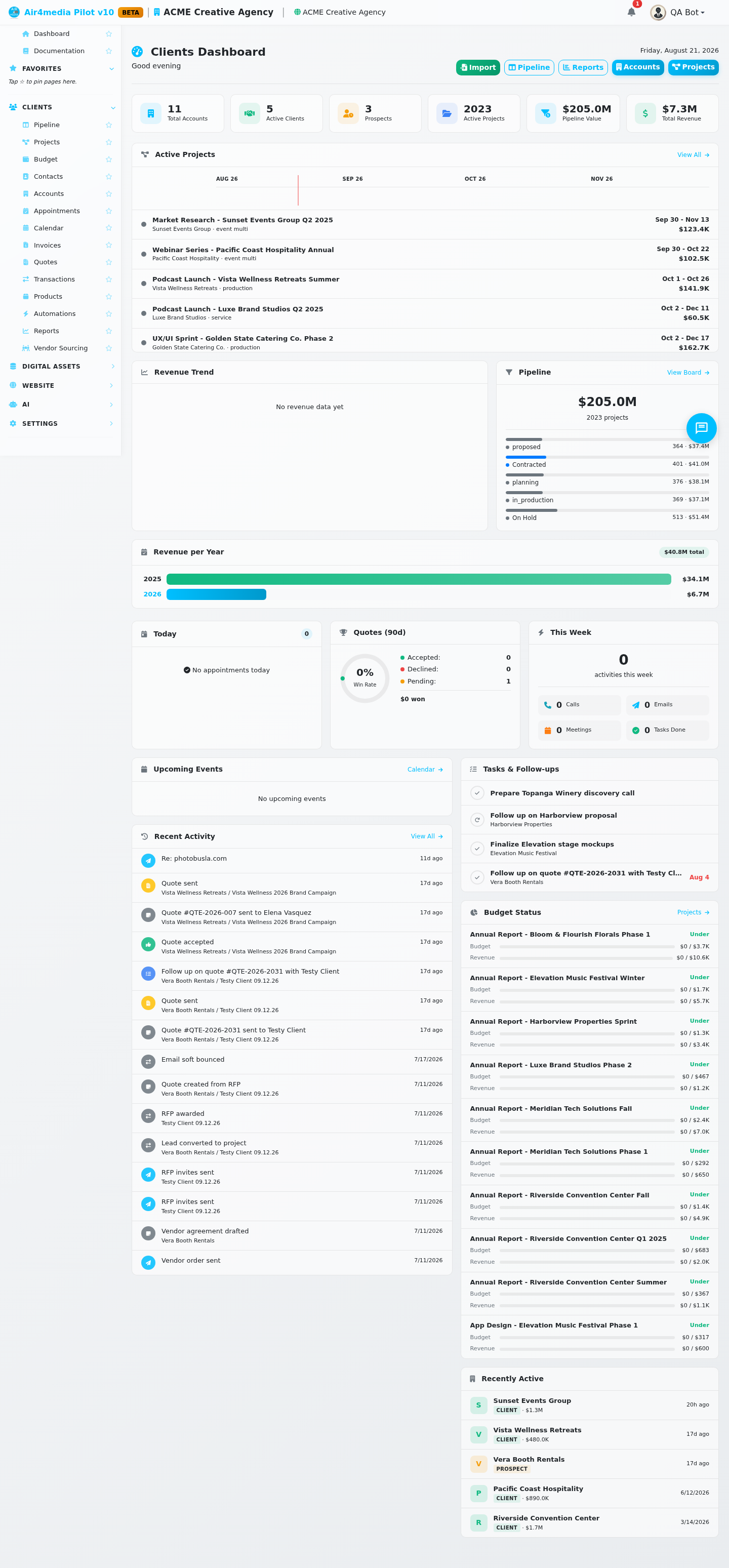
Your CRM home base — an at-a-glance view of every account, project, deal, and task across your business.
Key Features
- KPI Summary Bar: Six live counters at the top — Total Accounts, Active Clients, Prospects, Active Projects, Pipeline Value, and Total Revenue — so you always know where you stand.
- Active Projects Timeline: A visual Gantt-style chart showing all in-progress projects across their date ranges. Click any project bar to jump straight to the project detail.
- Revenue Trend: A 6-month bar chart of collected payments with a badge showing how this month compares to last month (e.g. +12% vs last month).
- Pipeline Funnel: A breakdown of your active deals by stage — Lead, Proposal, Contracted, In Progress, On Hold — with project counts and estimated values per stage.
- Today's Appointments: All appointments scheduled for today, listed by time.
- Quote Win Rate: A 90-day scorecard showing how many quotes were accepted, declined, or are still pending, plus your overall win percentage.
- This Week's Activity: A running count of calls made, emails sent, meetings held, and tasks completed since Monday.
- Upcoming Events: Project-linked events happening in the next 14 days, with dates and venue info.
- Recent Activity Feed: A live stream of the last 15 actions across all accounts — calls, emails, notes, payments, status changes, and more.
- Overdue Invoices: An alert card (shown only when needed) listing past-due invoices with days overdue and total amount outstanding.
- Tasks & Follow-ups: Your pending calls, follow-ups, meetings, and tasks. Click the icon on any task to mark it complete without leaving the dashboard.
- Budget Status: For projects with monthly budgets or revenue targets, a progress bar shows whether you're under, on track, or over for the current month.
- Expiring Contracts: Contracts reaching their end date within 30 days appear here as a heads-up (hidden when none are expiring soon).
- Recently Active Accounts: The five accounts with the most recent activity, with type badge (client, prospect, lead) and total revenue.
- Import Contacts: Upload a CSV file to bulk-import contacts. Preview and map your columns before importing, with an option to update existing records matched by email address.
How to Use
- Open Clients from the sidebar to see your full dashboard.
- Check the KPI bar at the top for a quick health check of your accounts and pipeline.
- Review the Timeline to see which projects are active and where they fall in the calendar.
- Use the Pipeline Funnel to spot where deals are concentrated and click View Board to manage them.
- Check Tasks & Follow-ups and click the task icon to complete items directly from the dashboard.
- If the Overdue Invoices card appears, address those accounts promptly.
- To add contacts in bulk, click Import in the top-right, upload your CSV, map the columns, and confirm.
Tips
- The dashboard updates automatically when you switch sites using the site selector in the top bar.
- Tasks completed here are reflected immediately across the CRM — no need to visit the activities page.
- Use the Pipeline and Reports buttons in the top-right to dive deeper into deal management and analytics.
- The Revenue Trend badge turns red when this month's revenue is below last month — a quick signal to focus on collections.
- Contracts expiring within 7 days show in red; 8–30 days show in amber.