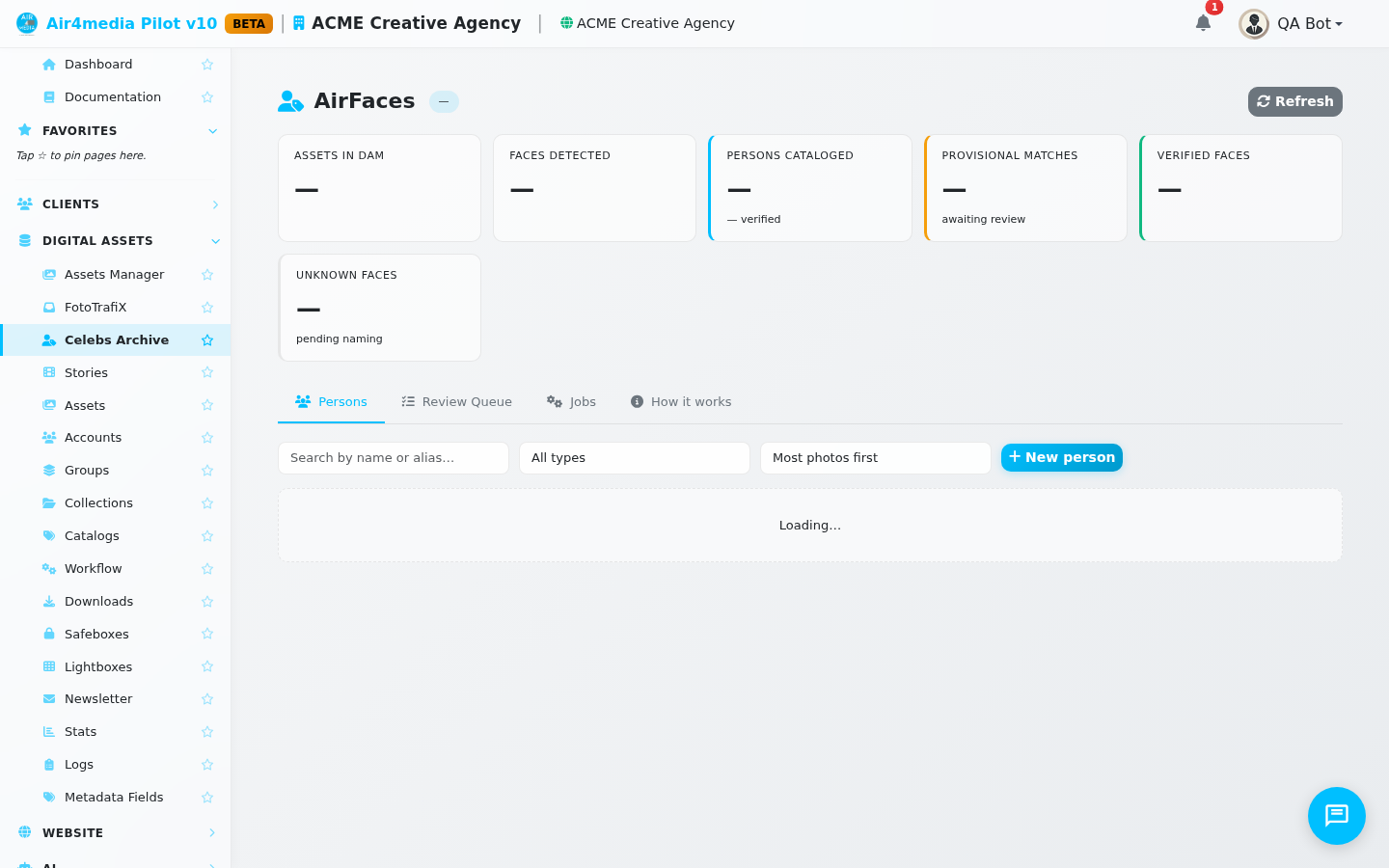
Celebs Archive
Celebs Archive is your DAM's built-in facial recognition and identity catalog. It scans every photo in your library for faces, mines names from existing photo descriptions, and builds a searchable roster of recognized people — so searching "Jennifer Lopez" in your DAM returns every photo she appears in, even if those photos were never manually tagged.
Key Features
- Live Stats Dashboard: At a glance, see how many faces have been detected across your library, how many people are cataloged, and how many matches are waiting for your review.
- Persons Catalog: Browse all recognized individuals as a card grid. Each card shows the person's name, category (Celebrity, Actor, Musician, Athlete, Model, Politician, etc.), verified photo count, and any pending provisional matches.
- Search & Filter: Search the catalog by name or known alias, and narrow results by person type. Sort by most photos, alphabetically, or recently updated.
- Identity Records: Each person entry supports aliases (stage names, maiden names), character roles, a short bio, and optional reference links for cross-checking identity.
- Review Queue: When the system is confident it has matched a face to a known person, that match lands here awaiting your approval. Each card shows a cropped face thumbnail, the suggested name, and a confidence score. Approve or reject with a single click.
- Caption Mining: Names already embedded in your existing photo captions — such as "L–R: Tom Hanks, Meryl Streep…" — are automatically extracted to seed the catalog. Well-captioned archives get a head start with no manual effort.
- Automatic Writeback: Once you verify a match, the person's name is written back into the photo's metadata, making them discoverable in all DAM searches and portals immediately.
- Processing Monitor: The Jobs tab shows the status of each background step — face detection, name extraction, matching, and writeback — so you always know where processing stands.
How to Use
- Open Celebs Archive from the sidebar. The stats bar at the top shows a live summary of your library's recognition progress.
- Click the Persons tab to browse your identity catalog. Search for a name, or use the type filter to see only Actors, Musicians, Athletes, etc.
- Click any person card to open their full record, see matched photo thumbnails, aliases, and roles. Use the edit form to update their name, category, or bio.
- To add someone new, click New person, enter their name and category, and save. They become available for future matching immediately.
- Click the Review Queue tab — the badge shows how many matches are pending. For each card, review the face crop and suggested name, then click the green checkmark to approve or the red X to reject.
- Visit the Jobs tab to confirm background processing is progressing normally across all pipeline steps.
Tips
- Start with the highest-confidence matches in the Review Queue — the percentage shown on each card indicates how certain the system is.
- Rejecting a wrong match is just as valuable as approving a correct one: both actions help future matching improve.
- If a person goes by more than one name, add the alternate as an alias so searches find them either way.
- Verified identities are shared across your entire DAM — every portal and catalog benefits automatically.