Booth Settings
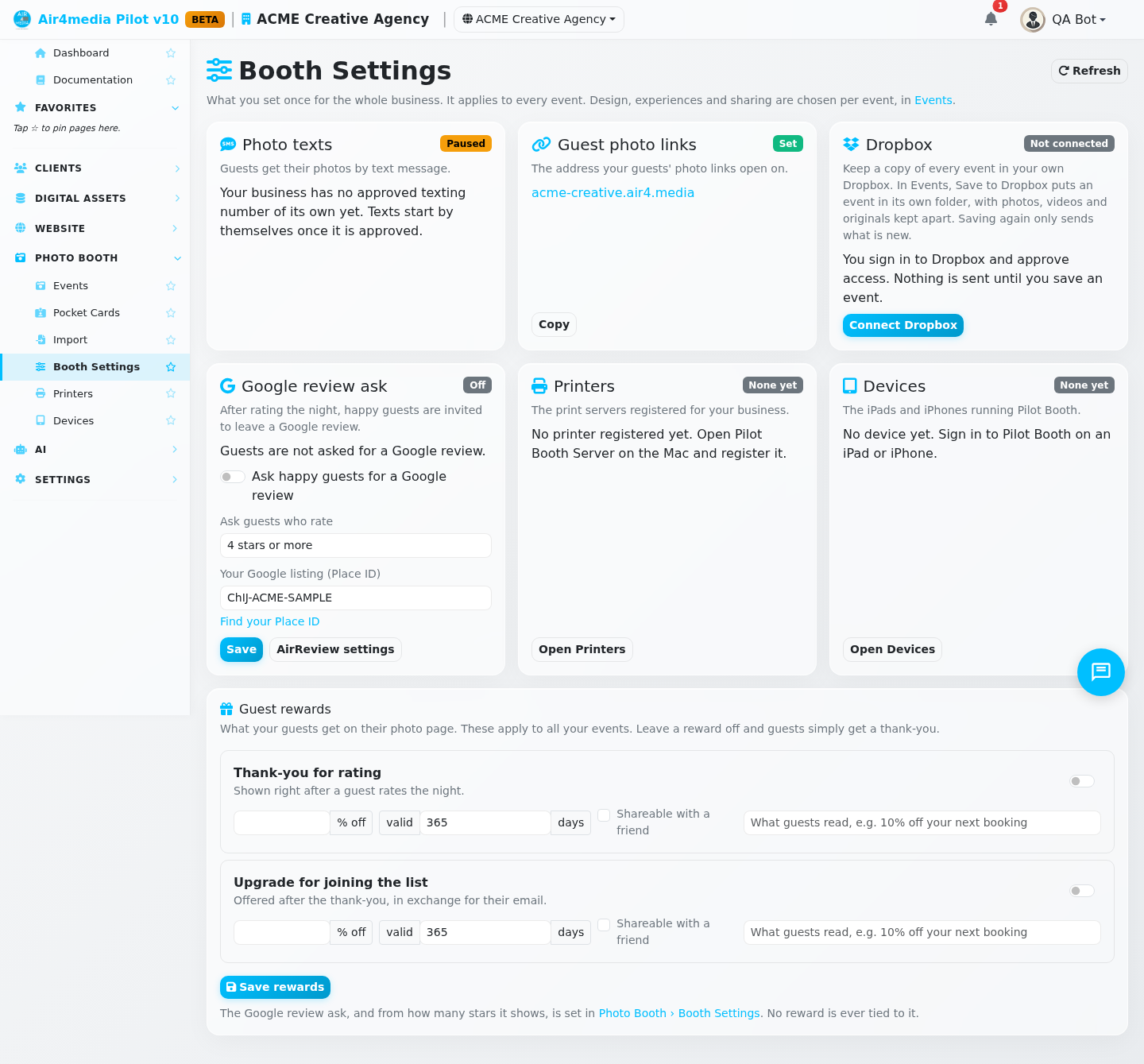
Booth Settings is where ACME Creative Agency configures everything that applies across all events — photo texts, guest photo links, Dropbox, Google reviews, printers, devices, and guest rewards. Set these once and they carry through to every event you run. Per-event design and sharing options are handled inside each event under Events.
Key Features
Each item appears as a card with a status badge — such as On, Paused, Connected, Not connected, or None yet — so you can see what is ready at a glance.
- Photo texts: shows whether guests receive their photos by text message, plus the last four digits of the sending number. The badge reads Paused until your business has an approved texting number of its own. Texts start by themselves once it is approved — there is nothing to change on this page.
- Guest photo links: the web address that opens when a guest taps their photo link. Click Copy to grab it for your own materials.
- Dropbox: shows whether your Dropbox account is connected. Once it is, saving an event sends its photos, videos, and originals into a dedicated folder. Re-saving the same event only uploads what is new.
- Google review ask: switch the ask on or off, choose the minimum star rating that triggers a review invitation (from 5 stars only down to 1 star or more), and enter your Google listing as a Place ID. Click Save to apply. Until a Place ID is entered the badge reads Not asking and no guest is directed to Google.
- Printers: lists every print server registered for ACME Creative Agency by name, showing Online, how long ago it last checked in, or Never seen. The badge counts how many are online right now.
- Devices: lists every iPad and iPhone running Pilot Booth for your business by name, with the same online or last-seen status.
- Guest rewards: controls what guests see on their photo page after every event. Two rewards are available — a thank-you for rating, and an upgrade offer in exchange for an email address. For each, set the percentage off, how many days it stays valid, whether guests can share it with a friend, and the message they read (for example, "10% off your next booking").
How to Use
- Go to Photo Booth in the sidebar and open Booth Settings.
- Check the badge on each card — any card that is not ready explains what is missing.
- To connect Dropbox, click Connect Dropbox, sign in, and approve access. Photos are only sent when you save an event.
- To configure the Google review ask, turn on the toggle, choose your star threshold, enter your Place ID, and click Save. Use the Find your Place ID link if you need help locating it.
- To manage printers or register a new one, click Open Printers. For devices, click Open Devices.
- To set up guest rewards, fill in the details for each reward and click Save rewards.
- Click Refresh at any time to reload all card statuses.
Tips
- Guest rewards apply to every event. Switch a reward off and guests simply receive a thank-you instead.
- The Guest rewards card also appears inside each event under Sharing — editing it in either place updates both.
- The Google listing field accepts a Place ID (a short code of letters and digits), not a web address. Clear the field and save to remove the listing.
- No reward is ever tied to a Google review.
- A printer or device counts as online when it checked in within the last minute.