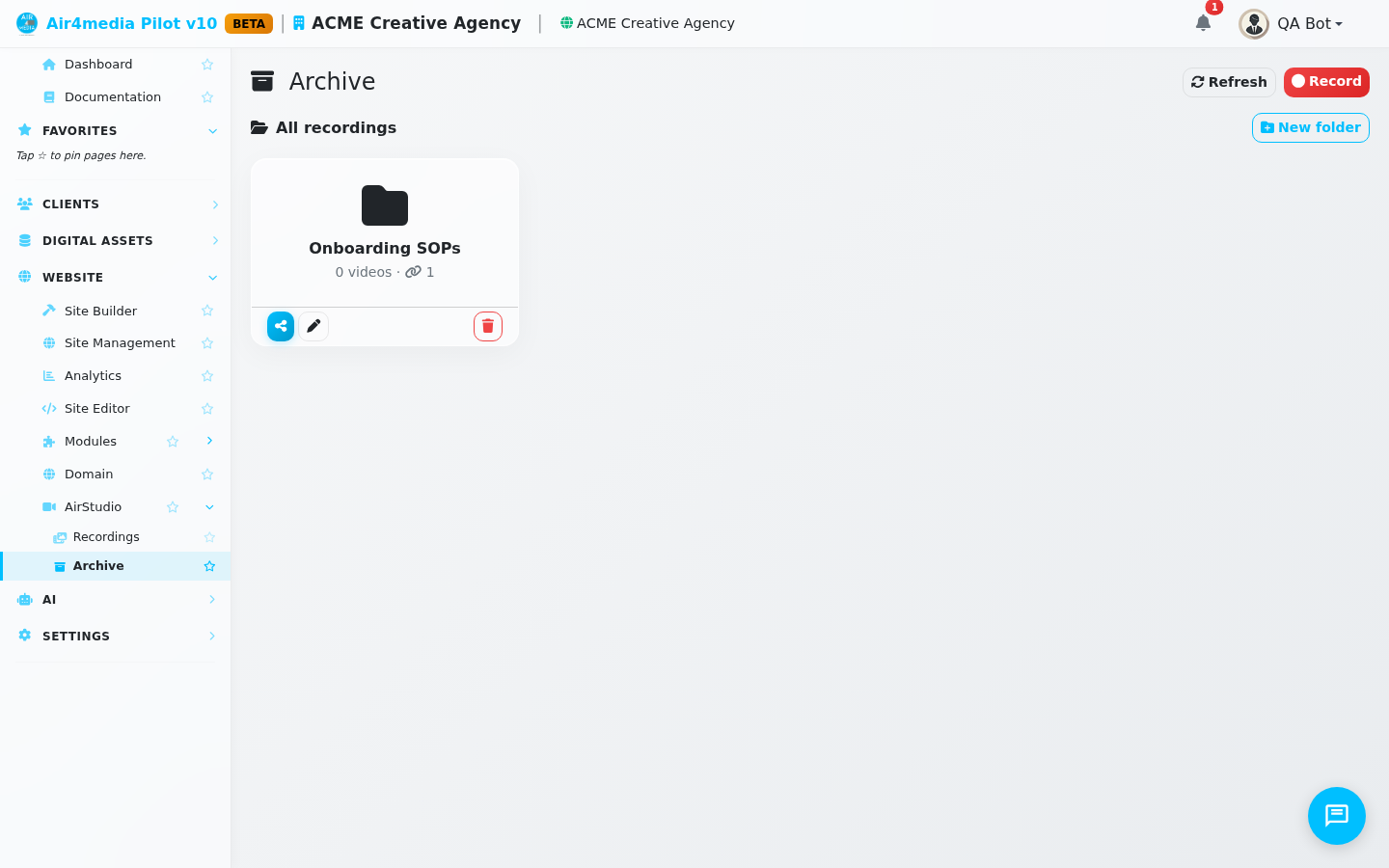
Archive
The Archive is where recordings go when you move them out of your main Recordings library. They're not deleted — they're simply set aside so your active list stays focused and easy to scan. Everything you can do with a live recording (play, download, share, add notes) works here too, and you can restore any video back to Recordings at any time.
Key Features
- Archived recordings kept safe: Videos you archive from the Recordings page land here automatically. ACME Creative Agency's archived session clips and older project recordings are stored here without taking up space in the active library.
- Full playback in-browser: Click the thumbnail on any card to open the video player right in the page. If a recording has captions, they display automatically.
- Transcripts: When a transcript was generated for a recording, it appears below the player in a collapsible section — useful for reviewing spoken content without rewatching.
- Notes: Each recording has a notes panel inside the player. Team members can leave timestamped comments, and anyone can delete their own notes.
- Metadata at a glance: Each card shows the recording date, resolution, and duration. Click the info button (ⓘ) for a full breakdown — format, file size, share status, and view count.
- Folders: Archived recordings can be grouped into folders just like in the main library. Click a folder card to drill in; use the breadcrumb to navigate back to the top level. Create, rename, or delete folders from the toolbar.
- Private share links: Generate an unlisted share link for any archived video (or a whole folder). The link works for anyone you send it to — no login required — and you can revoke it at any time with Stop sharing.
- Download: Download the original MP4 directly from any card using the download button.
- Restore to Recordings: The restore button (circular arrow) moves a video back into your active Recordings library instantly.
- Permanent delete: The trash button permanently removes a recording and its files. This cannot be undone.
How to Use
- Open Archive from the AirStudio section of the sidebar.
- Browse your archived videos as a grid of cards. Folders appear first; click one to open it.
- To play a recording, click its thumbnail.
- To restore a video to the main Recordings page, click the circular-arrow button on its card and confirm.
- To share a video, click the Share button on the card. Copy the private link and send it to whoever needs access.
- To share a whole folder, open the folder then click Send folder in the toolbar — or use the share icon on the folder card from the root view.
- To add a note, open the player, scroll to the Notes section, type your note, and click Add.
- To permanently delete a recording, click the trash icon and confirm. Deleting a folder only removes the folder — the recordings inside move back to the unfiled view.
Tips
- Archive is a great place for recordings you want to keep for reference but don't need in your day-to-day workflow — like draft takes, completed project videos, or seasonal content.
- Share links for archived recordings work the same as for live ones. If you already shared a video before archiving it, the link stays active.
- Use folders to organize archived recordings by project or client. ACME Creative Agency might keep a "2024 Campaigns" folder here for easy retrieval.
- Restoring a recording does not affect any share links or notes already attached to it.