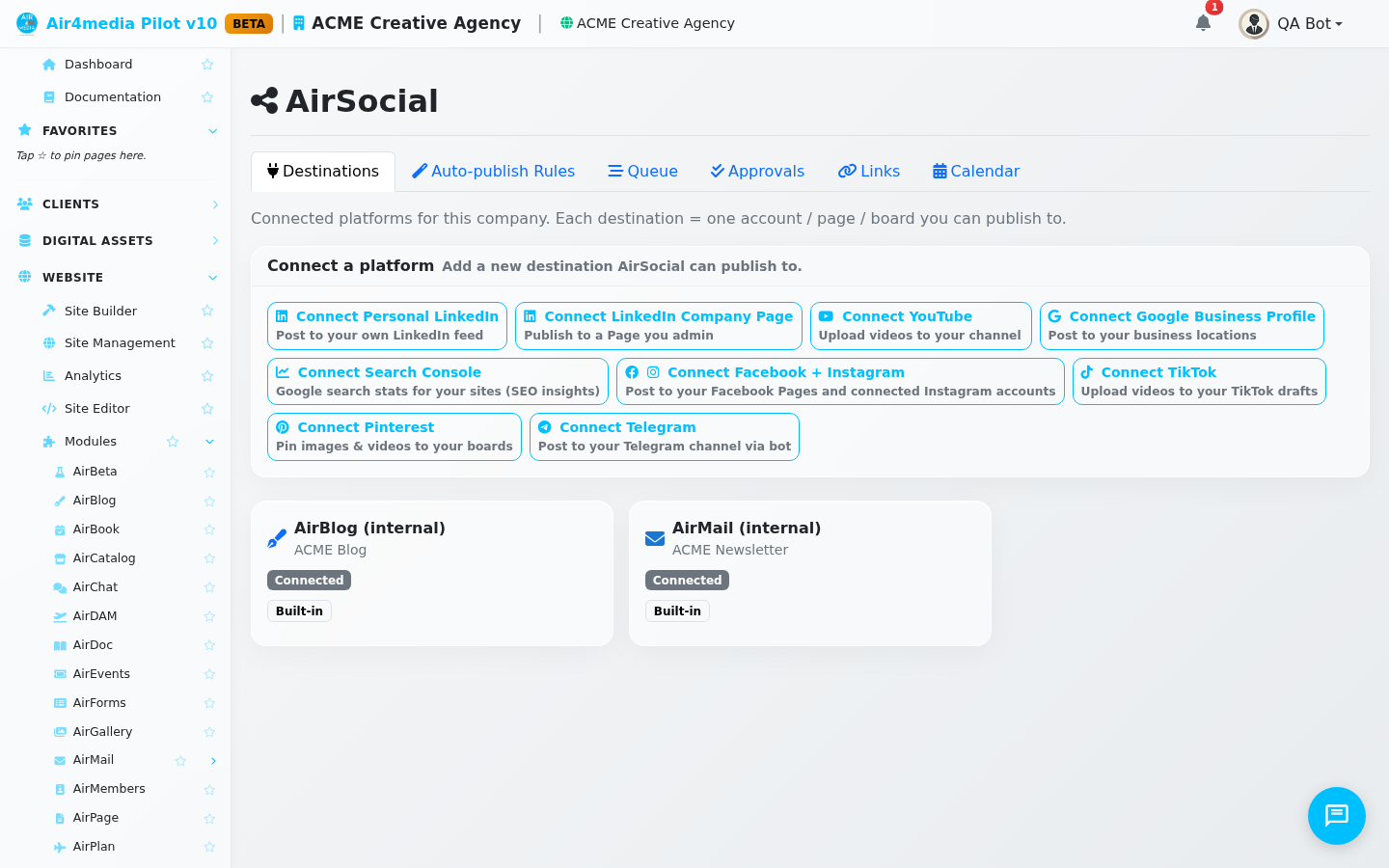
AirSocial
AirSocial is ACME Creative Agency's publishing hub — send content from one place to multiple social platforms and internal channels without logging into each one separately.
Key Features
- Multi-platform publishing: Push content to YouTube, Facebook, Instagram, LinkedIn, X, TikTok, and Pinterest from a single workflow
- Personal accounts stay personal: your own LinkedIn, X or TikTok is yours alone, and you decide whether a colleague may post for you
- Internal cross-posting: Repurpose content directly to your AirBlog, AirMail campaigns, and AirGallery — no copy-pasting required
- Connected Destinations: See all your linked accounts in one place, with live health status so you know which connections are active
- Publish Queue: Every post is queued and dispatched in the background, so you can schedule and move on without waiting
- Approval Workflow: For platforms that require a review step before going live, posts pause for sign-off before publishing
- Auto-publish Rules (coming soon): Set rules so that new stories, assets, or products automatically flow to the right destinations
How to Use
- Open AirSocial from the sidebar — you'll land on the Destinations tab, which lists all platforms ACME Creative Agency has connected
- Connect a destination by selecting a platform and following the authorisation steps (OAuth for external platforms like Meta or LinkedIn; instant for internal ones like AirBlog)
- Publish content by selecting the source material — a story from the DAM, an AirBlog post, or a shop product — then choosing one or more destinations and clicking Publish
- Monitor the Queue tab to see pending, in-progress, and completed posts for your account
- Review approvals in the Approvals tab if a destination requires sign-off before the post goes live — approve or reject from here without leaving the platform
Personal Accounts and Sharing
Some accounts belong to a person rather than to the business: your own LinkedIn feed, or your own X or TikTok handle. AirSocial keeps these private.
- Company accounts (your business Page, company profile or brand handle) can be used by everyone on your team, as before
- Personal accounts can only be used by the person who connected them. Colleagues do not see them and cannot post to them, and that includes the owner of the business
- When you connect X or TikTok, choose Connect X or Connect TikTok for the business account, or Connect my personal X or Connect my personal TikTok for your own. A personal LinkedIn is always personal
- Everyone on your team can connect their own personal accounts and post under their own name
Letting someone post for you
- On the Destinations tab, find your personal account and click Share
- Tick the colleagues who may post as you
- Leave Needs my approval on to read everything they write before it goes out: their posts wait in your Approvals tab. Turn it off only for someone you fully trust
- Click Save
Only you can approve posts on your personal account, share it, or disconnect it. If you remove someone, the posts they had scheduled on your account are cancelled. The Queue tab shows who scheduled each post.
If someone leaves your company, nobody can post to their personal accounts any more. The owner of the business or an admin can then disconnect those accounts from the Destinations tab.
Destinations at a Glance
| Channel | What you can publish |
|---|---|
| Facebook / Instagram | Stories, assets, blog posts, products |
| Stories, assets, blog posts, products | |
| X | Stories, assets, blog posts, products, gallery albums |
| YouTube | Video assets, products |
| TikTok | Video assets, products |
| Stories, assets, products, gallery albums | |
| AirBlog | Stories, assets, products |
| AirMail | Creates a draft campaign — you send it manually |
| AirGallery | Stories, assets, products (Phase 1) |
Tips
- If a destination shows a warning icon on the Destinations tab, the connection needs re-authorising — click it to refresh the token before your next publish
- AirMail posts are always created as drafts — AirSocial will never send an email campaign automatically; you review and send it yourself from the AirMail screen
- Use the Queue tab to confirm a post went through before publishing again — duplicate protection is built in, but the queue gives you the clearest picture