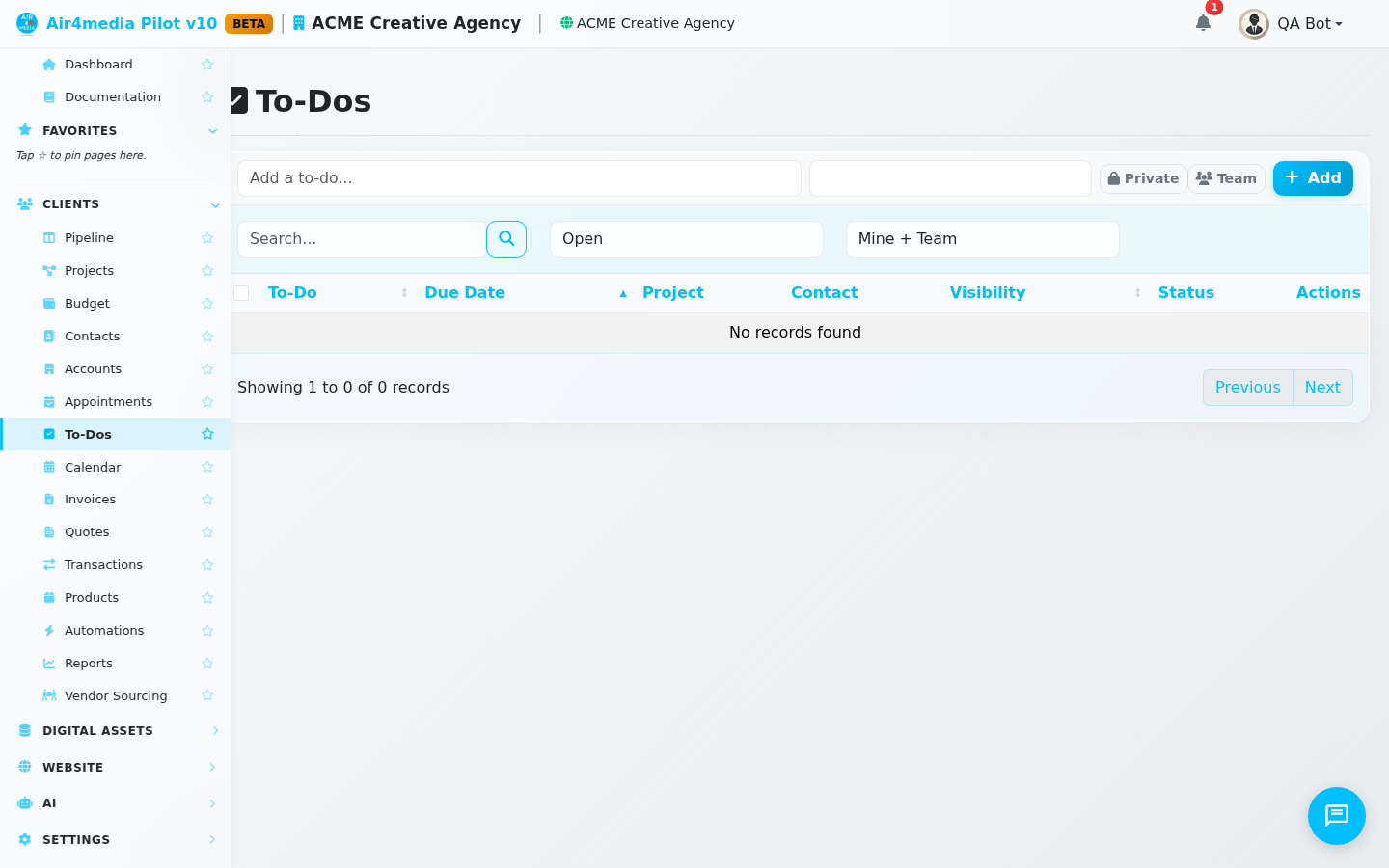
To-Dos
Keep your work on track with a personal task list that lives inside your company account. To-Dos is where you capture anything that needs attention — from following up with a client to reviewing a deliverable — with optional due dates and the ability to share selected tasks with your team.
Key Features
- Quick-add bar: Type a task title, set a due date, choose Private or Team visibility, and press Add — your to-do appears instantly without opening a form.
- Due date tracking: Dates are shown clearly in your list. Overdue items are highlighted in red so nothing slips past you.
- Private and Team tasks: Keep a task just for yourself, or mark it as Team so your colleagues at ACME Creative Agency can see it in their own list.
- Linked to projects and contacts: When editing a to-do, you can attach it to one of your active projects or a specific contact, giving each task the right context.
- Status badges: Every to-do shows as Open or Completed at a glance. Mark one done with a single click — or undo it just as easily.
- Search and filter: Search by keyword, or filter the list to show only open tasks, only completed tasks, or toggle between your own tasks and the full team view.
- Batch actions: Select multiple tasks and mark them all complete or delete them in one step.
How to Use
- Add a task quickly — Type a title in the bar at the top of the page, optionally set a due date, choose Private or Team, then click Add (or press Enter).
- View your list — Tasks appear sorted by due date, with the most urgent at the top. Overdue items stand out in red.
- Mark a task complete — Click the Complete action on any row. The title will appear with a strikethrough and the status badge changes to Completed.
- Edit a task — Click Edit on any of your own tasks to open the full edit form, where you can add a description, change the due date, link a project or contact, and adjust visibility.
- Filter the list — Use the Status filter to show All, Open, or Completed tasks. Use the scope filter to toggle between Mine + Team and Only Mine.
- Batch complete or delete — Check the boxes next to multiple tasks, then choose Complete Selected or Delete Selected from the batch action menu.
Tips
- Tasks marked Team are visible to other members of ACME Creative Agency but only the person who created the task can edit or delete it.
- Use the contact and project links in the edit form to connect a follow-up task to the right client or job — handy when reviewing your task list during a project check-in.
- The list defaults to showing open tasks sorted by due date, so your most pressing items are always at the top when you open the page.
- You can re-open a completed task at any time using the same Complete toggle — it flips the status back to Open.