Template Management
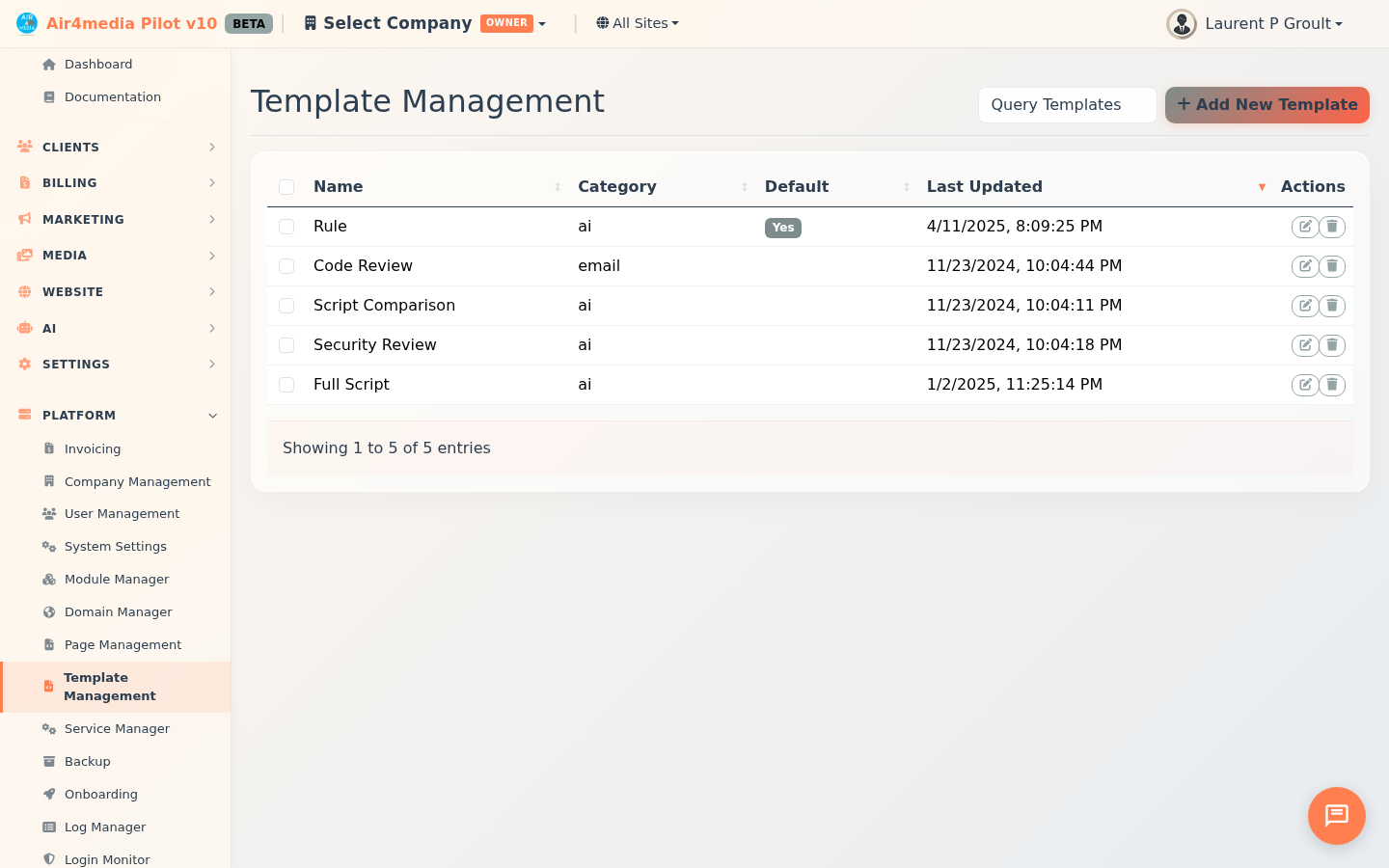
Create and manage reusable content templates used across the platform for AI processing, code analysis, and system operations. This page is accessible to platform administrators only.
Key Features
- Template Library: Browse all templates in a sortable list showing name, category, default status, and last updated date
- Two Template Types: Switch between Query Templates and Page Templates using the dropdown at the top of the page
- Four Categories: Organize templates into AI Processing, Code Analysis, System, or General
- Default Templates: Mark a template as the default for its category — it will be automatically selected whenever that category is needed elsewhere on the platform
- Full Content Editor: Write or paste multi-line template content directly in the editor when creating or editing
- Add, Edit, Delete: Create new templates from scratch, update existing ones, or remove templates no longer needed
How to Use
Browse Templates
- Open Template Management from the admin menu
- Use the Query Templates / Page Templates dropdown to switch between template types
- Click any column header — Name, Category, Default, or Last Updated — to sort the list
Add a New Template
- Click Add New Template in the top-right corner
- Enter a descriptive Name for the template
- Select the appropriate Category (AI Processing, Code Analysis, System, or General)
- Type or paste the template Content into the editor
- Check Set as Default Template for this Category if this should be the automatic default
- Click Save Template
Edit a Template
- Find the template in the list
- Click the Edit action on the right side of the row
- Update the name, category, content, or default status as needed
- Click Save Template to apply changes
Delete a Template
- Find the template in the list
- Click the Delete action on the right side of the row
- Confirm the deletion
Tips
- Templates marked as default show a green Yes badge in the list — easy to spot at a glance
- The list opens sorted by Last Updated (newest first), so recently changed templates appear at the top
- Use descriptive names to keep your library easy to navigate as it grows
- This page is visible only to platform-level administrators