Settings
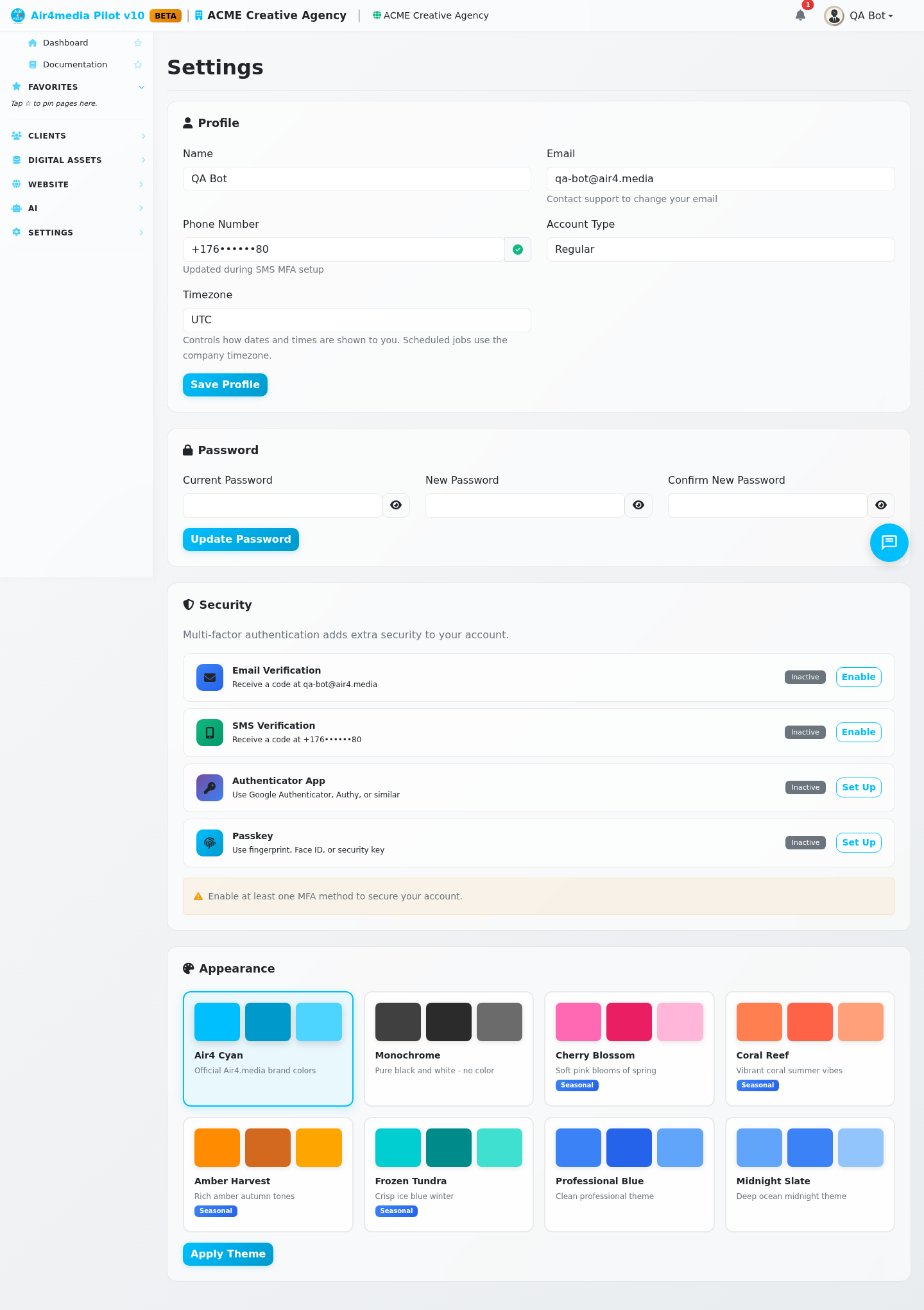
Manage your profile, password, account security, and appearance preferences.
Key Features
- Profile Management: Update your display name shown across the platform
- Password Change: Update your login password at any time
- Two-step sign-in: After your password, confirm it is you with a code or a passkey
- Theme Selection: Customize the look and feel of the interface
How to Use
Updating Your Profile
- Go to Settings from the sidebar
- Under Profile, update your name in the Name field
- Click Save Profile
Your email address, phone number, and account type are read-only. Contact support to change your email. Your phone number is saved when you set up text-message codes and enter the code sent to it.
Changing Your Password
- Under Password, enter your current password
- Enter and confirm your new password (minimum 8 characters)
- Click Update Password
This section only appears for standard accounts. Google sign-in accounts manage passwords through Google.
Setting Up Two-Step Sign-In
The Two-step sign-in section shows four methods you can turn on independently. Once one is on, signing in asks for your password and then for a code or a passkey. A device you used recently is remembered for 7 days.
Email Verification — A one-time code is sent to your email address each time you sign in.
- Click Enable, then enter the 6-digit code sent to your email
SMS Verification — A one-time code is sent to your phone number.
- If you haven't added a phone number yet, click Set Up to add one first
- Click Enable, then enter the code sent by text message
Authenticator App — Use an app like Google Authenticator or Authy to generate codes.
- Click Set Up and follow the on-screen steps to scan a QR code with your app
Passkey — Confirm it is you with your fingerprint, Face ID, or a hardware security key.
- Click Set Up and follow the browser prompt to register your device
- You can register multiple passkeys (e.g. MacBook, iPhone) and manage them individually
- Click Manage to add, rename, or remove registered passkeys
To turn a method off, or to remove one passkey, click Disable (or the remove button next to the passkey) and confirm it is you with your password, or with a code from another method if you sign in with Google.
The mobile apps ask for the same second step: type the 6-digit code right after your password, with no space. If you lose your phone or app, contact support to reset two-step sign-in for your account.
Changing Your Theme
- Under Appearance, browse the available color themes
- Click a theme card to select it — color swatches show the palette
- Click Apply Theme to save — the page will reload with the new look
Some themes are marked Seasonal and may only be available at certain times of year.
Tips
- Turn on at least one method: the Two-step sign-in section warns you when your account has none
- You can have several methods on at the same time, so you can still sign in if one is not at hand
- Give your passkeys descriptive names (e.g. "Work MacBook") so you can identify them easily
- If you sign in with Google, use Google's account settings to manage your password and primary email