Module Manager
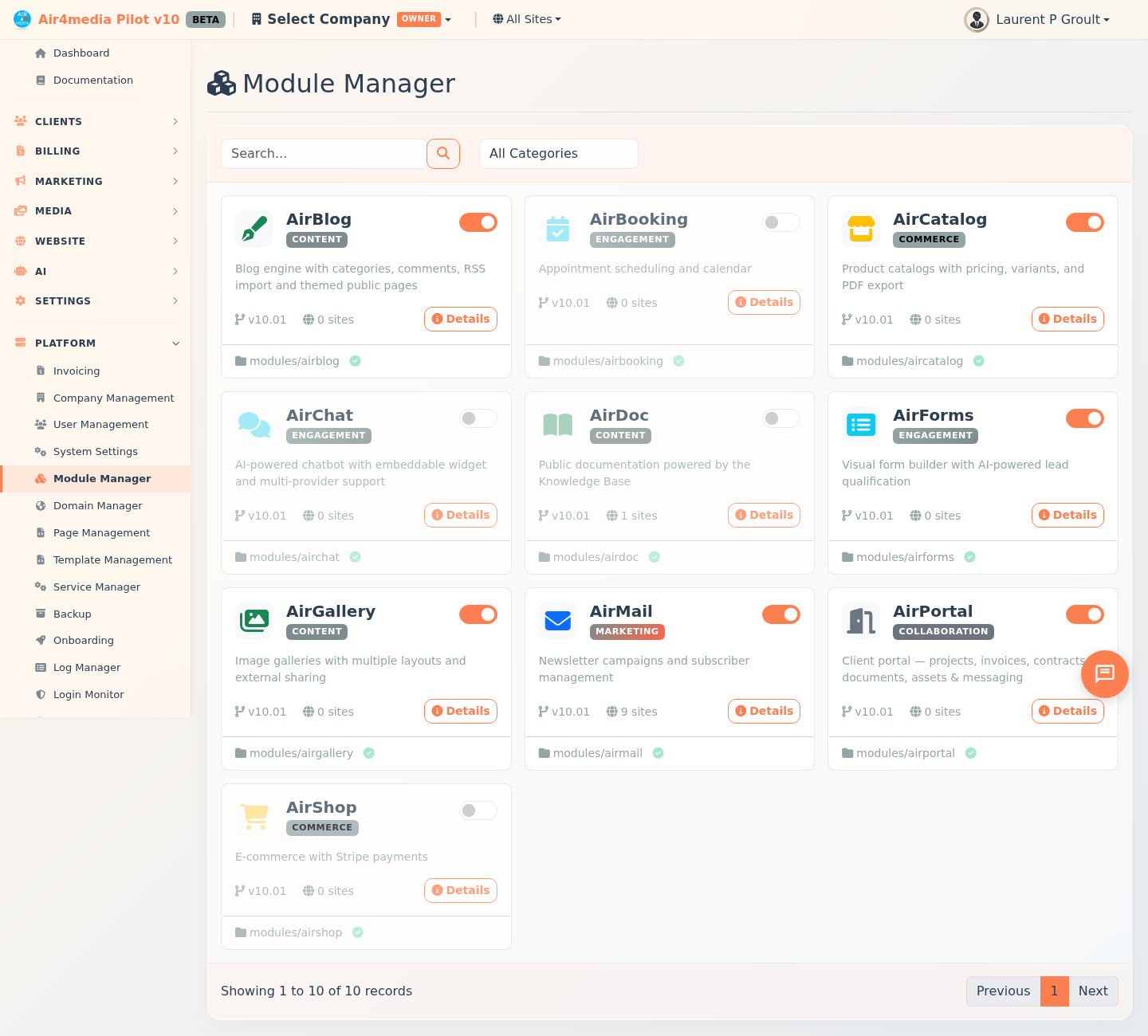
The Module Manager gives platform administrators a central place to view, enable, and disable Pilot modules across all sites. Every module — from marketing tools to commerce extensions — is displayed as a card showing its status and usage at a glance.
Key Features
- Module Cards: Each module appears as a card with its name, color-coded category badge, description, version number, and how many sites currently have it active.
- Enable / Disable Toggle: A toggle switch in the top-right corner of each card turns a module on or off globally with a single click. Disabled cards appear slightly faded with a gray border so you can spot them at a glance.
- Installation Indicator: A green checkmark in the card footer means the module's files are properly installed. A yellow warning icon means the module folder is missing — the toggle may show it as enabled but it won't function.
- Category Filter: Use the Category dropdown above the grid to show only Marketing, Engagement, Content, Commerce, or Collaboration modules.
- Search: Type in the search bar to filter by name, description, or category — results update instantly.
- Sort Controls: Click any column header to sort by Module name, Category, Active Sites, or Status.
- Module Details: Click the Details button on any card to open a popup with the full module breakdown, including which sites have it activated, each site's URL, activation status, and the date it was turned on.
How to Use
Enabling or Disabling a Module
- Find the module using the search bar or Category filter.
- Click the toggle switch in the top-right corner of the card.
- A confirmation message appears and the list refreshes to show the updated state.
Disabling a module affects it globally — it becomes unavailable across all sites until re-enabled.
Viewing Module Details
- Click the Details button on any module card.
- The popup shows version, category, enabled/disabled status, and whether the module files are installed on the server.
- A table lists every site using this module — with each site's name, URL, activation status, and the date it was activated.
Filtering and Searching
- Type in the search bar to match modules by name, description, or category.
- Use the Category dropdown to narrow the list to a specific group.
- Select All Categories to clear the filter.
Tips
- The Sites count on each card shows how many sites currently have that module active — check this before disabling to understand the impact.
- A yellow warning icon means the module's files are missing from the server, even if the toggle shows it as enabled. Contact your platform administrator to reinstall the module.
- The list defaults to alphabetical order. Use the sort controls to reorder by Active Sites or Status to quickly find the most-used or disabled modules.