Metadata Fields
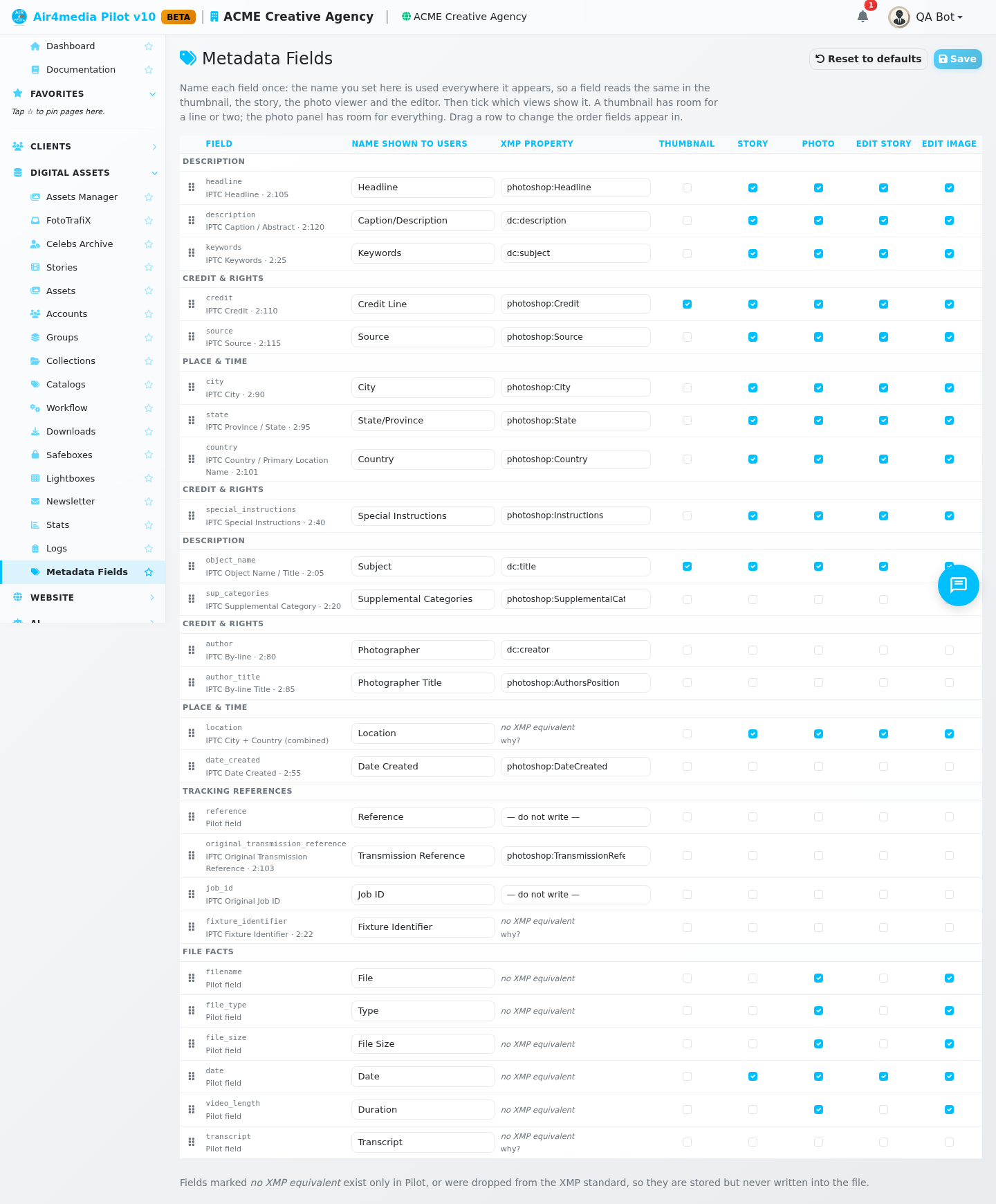
Metadata Fields lets you control exactly how asset information appears across your media library — from the captions under thumbnail tiles to the detail panels inside story galleries. For ACME Creative Agency, this means every image, video, and file surfaces the right labels in the right places, using the names your team already uses.
Key Features
- Custom Labels: Rename any metadata field to match your vocabulary — swap "Photographer" for "Camera Operator", or "Subject" for "Title", and the change appears everywhere instantly
- Screen-by-Screen Visibility: Choose which fields appear on thumbnail tiles, story pages, the photo viewer, and editing panels — each view is controlled independently
- Drag-to-Reorder: Arrange fields in any order by dragging rows up or down, so the most important information always appears first in every gallery and portal
- XMP Export Mapping: When assets are downloaded or exported, metadata is written using industry-standard XMP format — you choose which standard property each field maps to
- Instant Effect: Saved changes apply immediately across all your DAM galleries, portals, and lightboxes — no republishing needed
- Reset to Defaults: One click restores all field names and visibility settings back to the platform defaults
How to Use
- Open AirDAM from the main navigation and go to Metadata Fields
- You will see all available fields listed in groups — Description, Credit & Rights, Place & Time, Tracking References, and File Facts
- To rename a field, click its label box and type your preferred name — ACME Creative Agency, for example, might rename "Subject" to "Title" to match their internal cataloguing workflow
- Use the checkboxes across each row to show or hide that field on specific views: Thumbnail, Story, Photo Viewer, and the edit panels
- Drag the grip handle on the left of any row to reorder fields — the order here determines the order clients see in every gallery, portal, and lightbox
- For fields that support multiple export formats, use the dropdown to select your preferred industry standard
- Click Save — all portals and galleries update immediately
Tips
- Keep thumbnail captions brief — two or three fields at most looks cleanest on tile grids
- Hide fields your team never uses (such as Transmission Reference or Fixture Identifier) to keep editing panels focused and uncluttered
- A renamed field updates everywhere simultaneously — thumbnails, story pages, lightboxes, and your public client portals all reflect the new label
- File Facts fields like Filename, File Size, and Duration are always read-only — they display information but cannot be edited or written into the file itself
- Use Reset to Defaults if you want to undo all customisations — you will be asked to confirm before anything changes