Activities
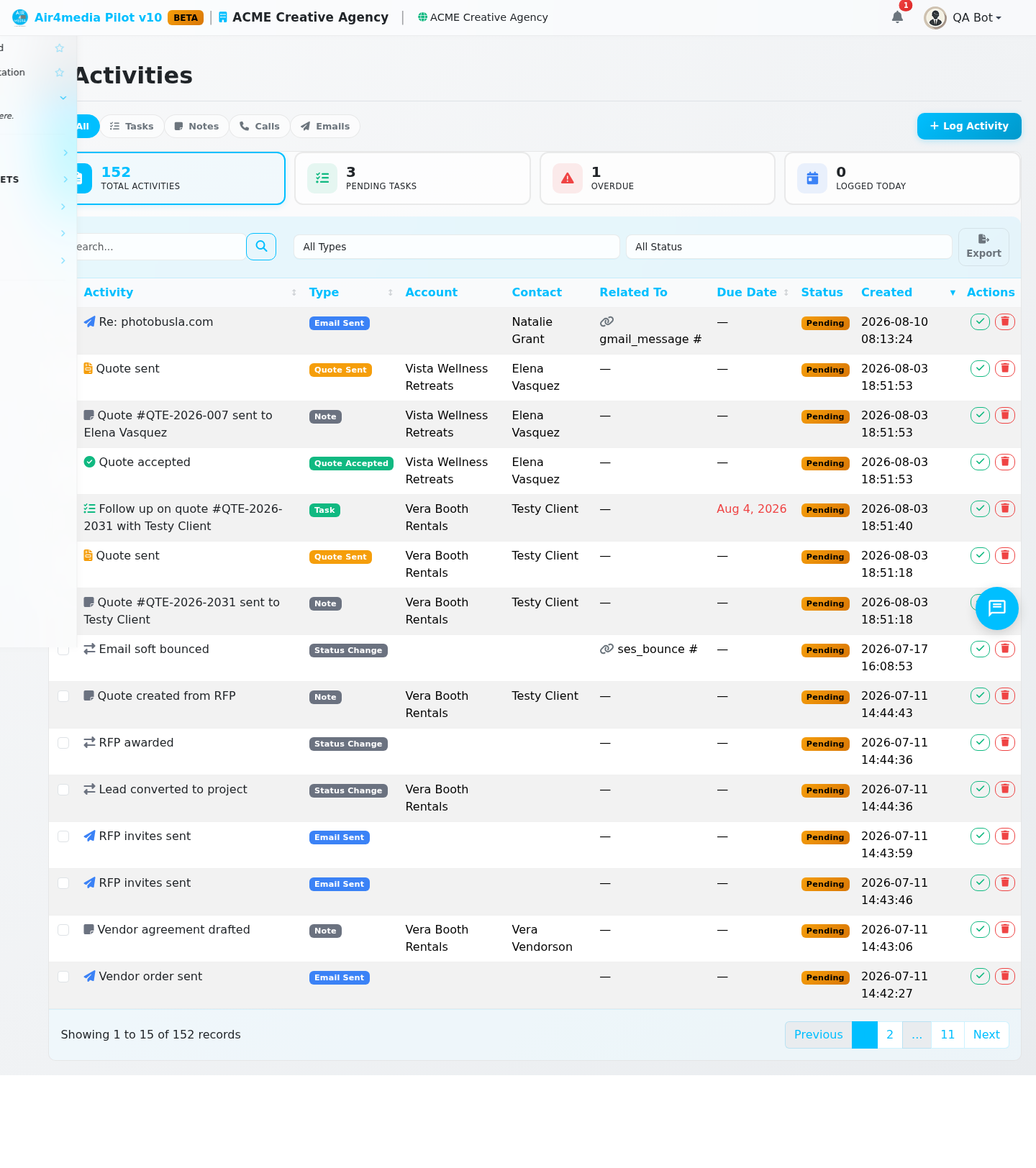
The Activities page is your central log for everything that happens with your clients — calls, emails, meetings, tasks, notes, and more. Use it to stay on top of follow-ups and keep a full history of your client interactions.
Key Features
- Stats Overview: Four at-a-glance counters show Total Activities, Pending Tasks, Overdue items, and activities Logged Today.
- Quick Filters: Instantly switch between All, Tasks, Notes, Calls, and Emails using the toolbar buttons.
- Type & Status Filtering: Use the Type and Status dropdowns in the list header to narrow results — filter by any activity type or by Pending vs. Completed.
- Search: Find any activity by searching its title or description.
- Color-Coded Types: Each activity type displays a distinct icon and color badge — purple for calls, blue for emails, green for tasks, amber for meetings, and more.
- Linked Records: Each activity shows the Account, Contact, and/or Project it belongs to, plus a Related To column for system-generated items (quotes, contracts, invoices, forms, appointments).
- Due Dates: Tasks and follow-ups show a due date. Overdue dates are highlighted in red.
- Mark Complete: Mark any activity as done directly from the list row — no need to open a detail page.
- Bulk Delete: Select multiple activities and delete them all at once.
How to Use
Log a New Activity
- Click Log Activity in the toolbar.
- Choose a Type: Note, Call, Email Sent, Email Received, Meeting, Task, Follow-up, or Custom.
- Enter a Title (required) and an optional Description.
- Optionally link the activity to an Account, Contact, and/or Project.
- For tasks or follow-ups, set a Due Date.
- Click Save.
Filter and Search
- Use the All / Tasks / Notes / Calls / Emails buttons to quickly filter by category.
- Use the Type and Status dropdowns in the list header for more specific filtering.
- Type in the search box to find activities by title or description.
Mark an Activity Complete
- Click the Complete button on any activity row.
- The activity status updates to Completed and is removed from your overdue and pending counts.
Delete Activities
- To delete one activity, click the Delete button on its row.
- To delete several at once, check the boxes next to them and click Delete Selected.
Tips
- Check the Overdue stat card daily to make sure no follow-ups slip through.
- Activities are automatically logged by the system when you send quotes, contracts, or invoices, and when clients submit forms, book appointments, complete payments, or sign contracts — your history builds itself.
- Link activities to Accounts and Projects so the full timeline appears in those records too.